Why Is My Phone Battery Draining So Fast? 15 Fixes (iPhone & Android)
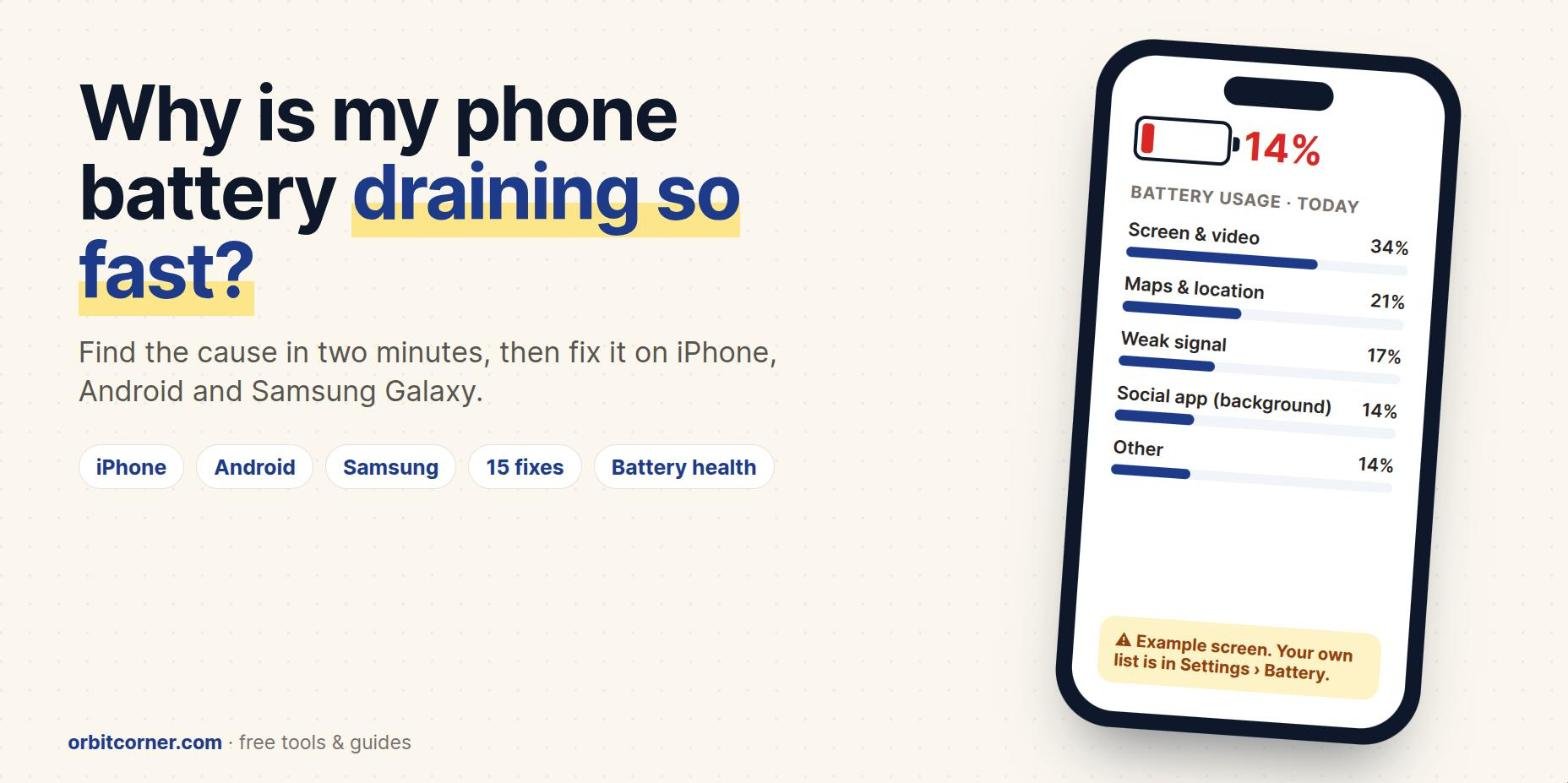
Short answer: a phone battery usually drains fast because of one of four things: a bright screen, a weak cellular signal, apps running in the background, or a worn-out battery. Open Settings › Battery to see exactly which app or feature is using the most power, fix that first, then work through the 15 fixes below. If your phone was just updated or set up, give it a few days: extra drain is normal while it finishes background tasks.
Few things are as annoying as a phone that was at 100% at breakfast and is begging for a charger by lunch. The good news is that sudden battery drain almost always has a cause you can find, and most of the fixes take under a minute.
This guide works for iPhone (iOS 26), Google Pixel and other Android phones, and Samsung Galaxy phones. Every step comes from Apple, Google or Samsung’s own support pages, and the exact menu names are shown in bold.
First: find out what is draining your battery
Before you change any settings, look at the battery usage list. It shows which apps and features used the most power, so you fix the real problem instead of guessing.
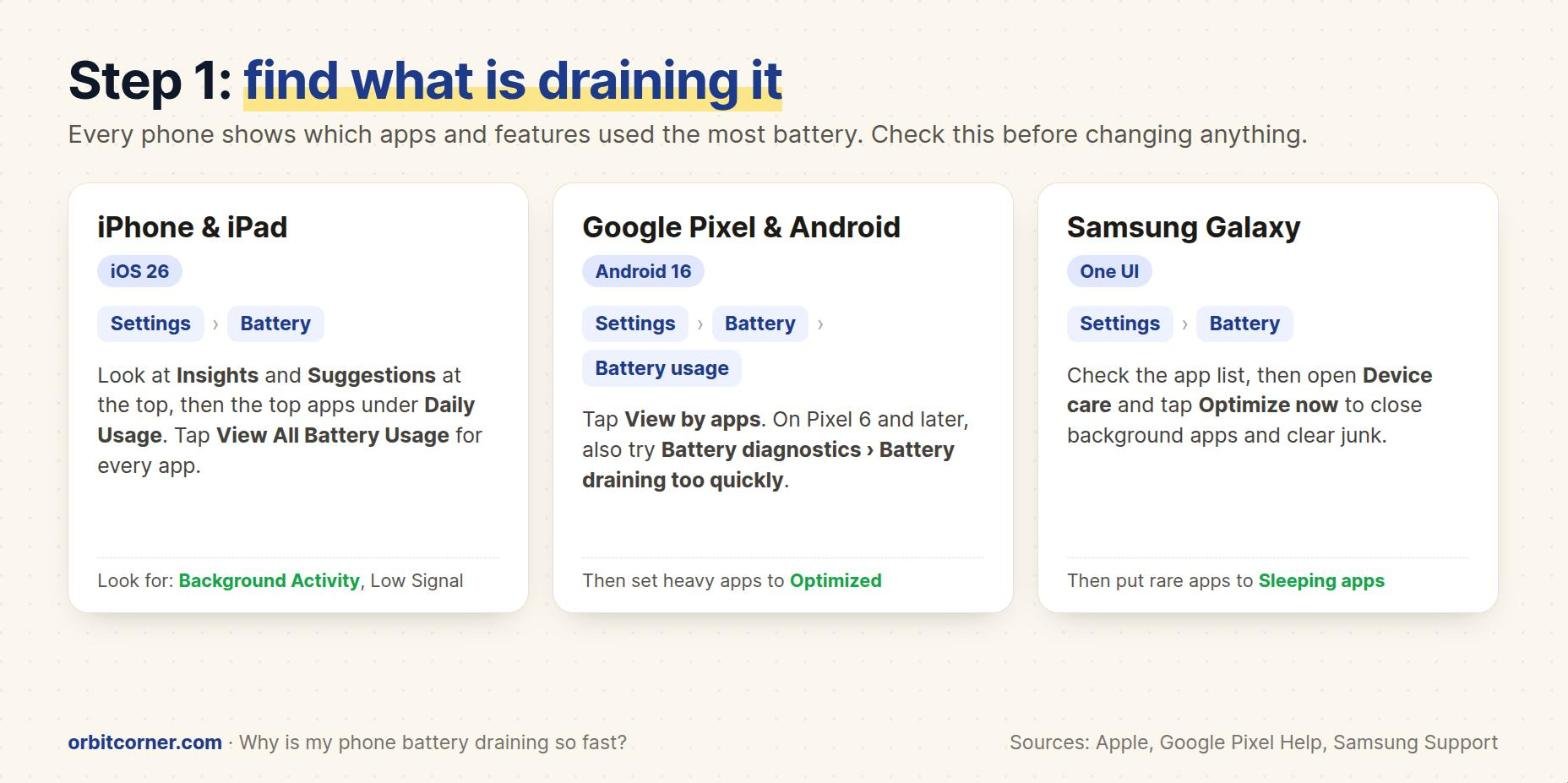
- iPhone: go to Settings › Battery. Apple shows Insights and Suggestions at the top, and the apps that used the most power under Daily Usage. Tap View All Battery Usage for the full list. Watch for the words Background Activity and Low Signal.
- Android (Pixel): go to Settings › Battery › Battery usage and tap View by apps. On a Pixel 6 or later, also try Settings › Battery › Battery diagnostics › Battery draining too quickly.
- Samsung Galaxy: go to Settings › Battery to see app usage, then open Device care and tap Optimize now.
Tip: take a screenshot of the battery screen today, apply the fixes, and compare it with tomorrow’s. That shows you which change actually helped.
The 8 most common causes
| Cause | How to spot it | Quick fix |
|---|---|---|
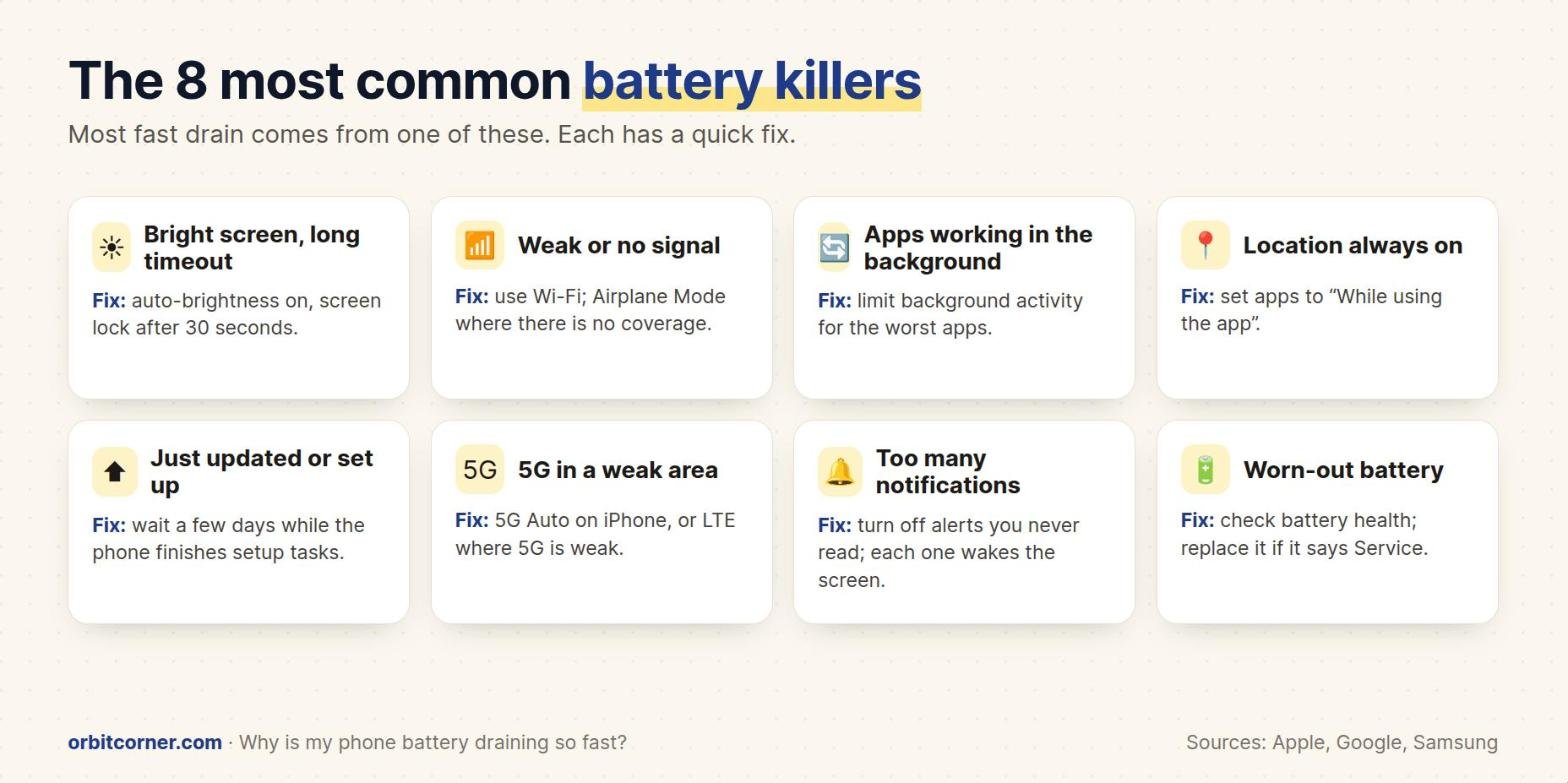
| Bright screen, long timeout | Screen or Display is near the top of the battery list | Auto-brightness on, lock after 30 seconds |
| Weak or no signal | iPhone shows “No Mobile Coverage and Low Signal” | Use Wi-Fi; Airplane Mode with no coverage |
| Background apps | An app you barely opened is high on the list | Limit its background activity |
| Location always on | Maps, weather or social apps rank high | Change to “While using the app” |
| Recent update or new phone | Drain started right after an update or setup | Wait a few days |
| 5G in a weak area | Drain is worse in some places than others | Use 5G Auto or switch to LTE |
| Too many notifications | Lots of alerts from apps you ignore | Turn off alerts you don’t need |
| Worn-out battery | Drain is steady and the phone is a few years old | Check battery health; replace if needed |
15 fixes for fast battery drain
1. Wait a few days after an update or a new phone
This is the most common cause, and the easiest to fix. Apple says that after an update, some tasks keep running in the background and can affect battery life and heat for a while, and it shows an Ongoing iOS Update or Ongoing Device Setup insight on the battery screen while that happens. Google says extra drain is normal after an Android update and that battery optimization can take a few weeks after a new setup or reset. Samsung says a new Galaxy phone usually improves after a few days of use.
2. Restart your phone
A restart stops apps and processes that got stuck using power in the background. It is also Google’s and Samsung’s first suggestion. On a Pixel 6 or later, hold Power + Volume up and tap Restart.
3. Update the phone and your apps
- iPhone: Settings › General › Software Update, then update apps in the App Store.
- Android (Pixel): Settings › System › Software update, then Play Store › profile icon › Manage apps & device.
- Samsung Galaxy: Settings › Software update. Samsung says keeping software up to date helps prevent rapid battery drain.
Updates often include fixes for apps or system bugs that use too much battery.
4. Turn down the screen
The screen is usually the biggest single user of battery. Apple’s own battery suggestions are to turn on auto-brightness, turn on auto-lock and lower the brightness.
- iPhone: turn on Auto-Brightness (Settings › Accessibility › Display & Text Size) and set Settings › Display & Brightness › Auto-Lock to 30 seconds or 1 minute.
- Android (Pixel): Settings › Display › Adaptive brightness, and a short Screen timeout.
- Samsung Galaxy: Settings › Display: lower the brightness and set Screen timeout to 30 seconds.
5. Stop apps from working in the background
- iPhone: Settings › General › Background App Refresh. Turn it off for apps that don’t need fresh content when closed.
- Android (Pixel): tap the app in Settings › Battery › Battery usage, open Allow background usage, and keep it on Optimized. Use Restricted only for apps that misbehave, because their notifications may be delayed.
- Samsung Galaxy: Settings › Battery › Background usage limits. Add rarely used apps to Sleeping apps, or Deep sleeping apps if they never need to run in the background.
6. Limit location access
GPS is one of the biggest power users. Most apps only need your location while you are using them.
- iPhone: Settings › Privacy & Security › Location Services. Set apps to While Using the App or Never.
- Android (Pixel): Settings › Location › App location permissions.
- Samsung Galaxy: Samsung lists GPS, auto sync, Wi-Fi and Bluetooth as features that increase drain when left on but unused.
7. Fix a weak signal
When the signal is weak, the phone boosts its radio power to stay connected, which drains the battery. Apple suggests connecting to Wi-Fi whenever you can, because it uses less power than cellular, and turning on Airplane Mode where there is no coverage at all, such as on a plane or in a basement. Samsung also says an unstable network drains the battery faster.
8. Use 5G only where it is strong
- iPhone: Settings › Cellular › Cellular Data Options › Voice & Data › 5G Auto. The phone then uses 5G only when it won’t noticeably cut battery life.
- Samsung Galaxy: Samsung notes that 5G can use 4G and 5G networks at the same time, and suggests switching to LTE in areas where 5G is weak.
9. Cut down on notifications
Every notification can wake the screen and the processor. Apple recommends changing an app’s notifications so it wakes your device less often. Turn off alerts from shopping, games and news apps you never act on.
10. Use the battery-saving modes
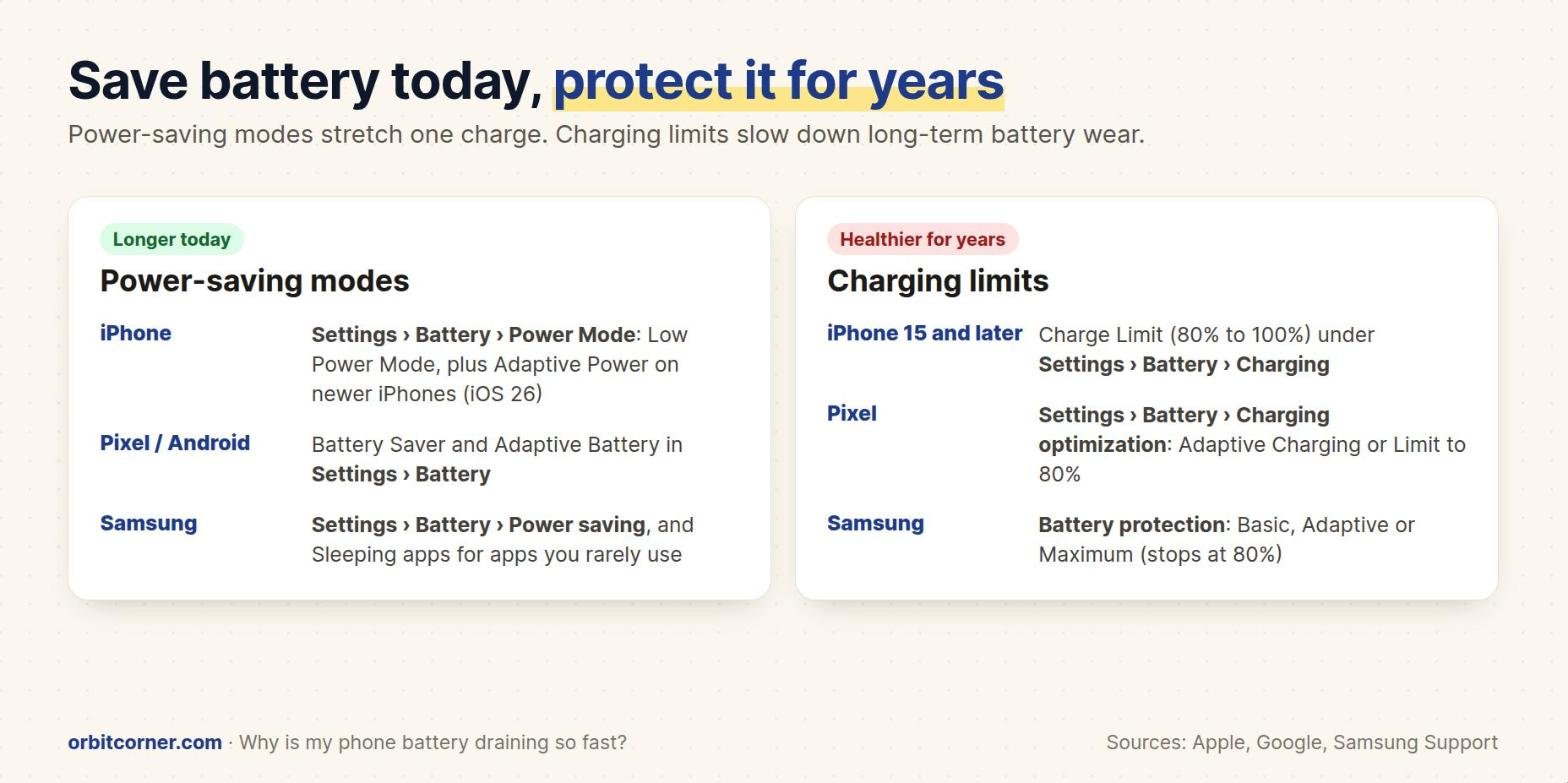
- iPhone: Settings › Battery › Power Mode. Low Power Mode reduces things like mail fetch, background refresh and some visual effects, and turns off by itself once you charge above 80%. iOS 26 adds Adaptive Power on newer iPhones: it makes small performance changes on heavy days and can turn on Low Power Mode at 20%. It is on by default on the iPhone 17 family and iPhone Air, and off by default on the iPhone 16 and iPhone 15 Pro models.
- Android (Pixel): keep Adaptive Battery on (Settings › Battery › Battery Saver › Adaptive Battery) and turn on Battery Saver when you need a charge to last.
- Samsung Galaxy: Settings › Battery › Power saving. Samsung says it limits background data for unused apps and turns off power-hungry features such as the Always On Display.
11. Use a dark wallpaper and dark mode
On phones with OLED or AMOLED screens (most recent iPhones, Pixels and Galaxy phones), dark pixels use less power. Samsung recommends dark wallpapers on AMOLED displays and warns that live wallpapers reduce battery life. Turn on dark mode in Settings › Display, and consider switching off the Always On Display if you don’t need it.
12. Keep your phone cool
Heat makes a battery drain faster and wears it out for good. Apple says iPhones work best between 0° and 35°C (32° to 95°F), and that storing or charging one in high heat can permanently shorten battery life. Don’t leave your phone in a hot car or charge it under a pillow, and take off a thick case if the phone gets hot while charging.
13. Remove or replace the app that is causing it
If one app is always at the top of the battery list and you rarely use it, uninstall it. If you need it, check for an update, sign out and back in, or use the app’s website instead. On Android you can also Force stop a misbehaving app from Settings › Apps, but Google warns not to force stop apps your phone needs.
14. Check your battery health
Every battery slowly loses capacity with each charge cycle, and Samsung points out that this loss can’t be reversed. If your phone is two or three years old and the drain is steady rather than sudden, the battery itself may be the problem.
- iPhone: Settings › Battery › Battery Health (iPhone 15 and later) or Battery Health & Charging (iPhone 14 and earlier). If you see Service, Apple recommends a battery replacement.
- Android (Pixel): Pixel 6 and later have Battery diagnostics in Settings › Battery, and newer Pixels also show Battery health there.
- Samsung Galaxy: open the Samsung Members app and run the battery check under Diagnostics.
A new battery from the manufacturer or an authorized repair shop usually makes an older phone feel new again, and costs far less than a new phone.
15. Last resort: reset the phone
If nothing above works, back up your phone and do a factory reset, then set it up as new rather than restoring everything at once. This removes any broken setting or app that you couldn’t find. Remember that the battery will drain faster for the first few days after a reset while the phone re-optimizes. If the drain continues after that, contact Apple, Google or Samsung support.
Protect your battery for the long term
The fixes above help your battery last through the day. These settings help it last for years, by keeping it from sitting at 100% for hours:
- iPhone: on iPhone 15 and later, set a Charge Limit between 80% and 100% in Settings › Battery › Charging. Older iPhones have Optimized Battery Charging.
- Android (Pixel): Settings › Battery › Charging optimization: choose Adaptive Charging or Limit to 80%.
- Samsung Galaxy: Battery protection in battery settings: Maximum stops charging at 80%, while Adaptive keeps it at 80% overnight and finishes before you wake up.
Which setting does what?
| Setting | Saves battery today | Protects battery health | Downside |
|---|---|---|---|
| Low Power Mode / Battery Saver / Power saving | A lot | A little | Slower mail, fewer background updates |
| Adaptive Power (iPhone) / Adaptive Battery (Android) | Some | A little | Very small; mostly automatic |
| Auto-brightness and short screen timeout | A lot | No | None for most people |
| Limiting background activity | Some to a lot | No | Some apps update later |
| 80% charge limit | No (less charge) | Yes | About 20% less charge each day |
| Wi-Fi instead of weak cellular | A lot in weak areas | No | None |
Battery myths you can ignore
- “Close all your apps to save battery.” Phones pause apps you are not using. Reopening an app from scratch can use more power than switching back to it. Close an app only if it is frozen or is clearly draining battery in the background.
- “Let the battery run to 0% before charging.” Modern lithium-ion batteries don’t need this. Samsung suggests keeping the charge between about 20% and 80%.
- “Charging overnight ruins the battery.” Optimized and adaptive charging hold the battery at about 80% for most of the night, then finish charging before you usually unplug.
Worried it might be something worse? Sudden battery drain together with high data use or apps you don’t recognize can be a sign of spyware. See how to tell if your phone is hacked.
More free guides and tools
OrbitCorner has simple, free tools and step-by-step guides for everyday tech jobs, with no sign-up and nothing to install.
Frequently asked questions
Why is my phone battery draining so fast all of a sudden?
Sudden drain usually comes from a recent update, a new app or an app that is stuck working in the background, or a weak signal. Check Settings › Battery to see which app is at the top, restart the phone, and give it a few days if you just updated.
Why does my phone battery drain overnight?
Overnight drain is usually caused by apps syncing in the background, weak signal in your bedroom, or notifications waking the screen. Check the battery screen for background activity, use Wi-Fi at night, or turn on Do Not Disturb or Sleep mode.
How do I know if my phone battery needs replacing?
On iPhone, go to Settings › Battery › Battery Health; “Service” means Apple recommends a replacement. On Pixel, use Battery diagnostics; on Samsung, run the battery check in the Samsung Members app. Steady drain on an older phone is another sign.
Does 5G drain the battery faster?
It can, especially where 5G coverage is weak. On iPhone, use 5G Auto. On Samsung, switch to LTE in weak 5G areas.
Does dark mode really save battery?
On phones with OLED or AMOLED screens, yes: dark pixels use less power. On older LCD screens the difference is very small.
Is it bad to use my phone while it is charging?
Light use is fine. Heavy gaming or video while charging makes the phone hot, and heat is what wears the battery down. Let it cool if it gets hot.
Sources
- Apple Support: If the battery in your iPhone or iPad drains too quickly
- Apple: Batteries, maximizing performance
- Google Pixel Help: Fix battery drain problems
- Google Pixel Help: Get the most life from your Pixel phone battery
- Android: How to save battery on Android
- Samsung US: Get the most out of your Galaxy battery
- Samsung US: What to do when your Galaxy battery drains faster
- MacRumors: iOS 26 Adaptive Power Mode