How to Copy Text From an Image on iPhone, Android, Windows and Mac (2026 Guide)
A recipe on a screenshot. A Wi-Fi password on a sticker. A paragraph in a PDF that will not let you select anything. Typing it all out by hand is slow and full of typos.
The good news: every modern phone and computer can already copy text from an image, and the few that cannot can use a free browser tool. This guide shows the fastest method for each device.
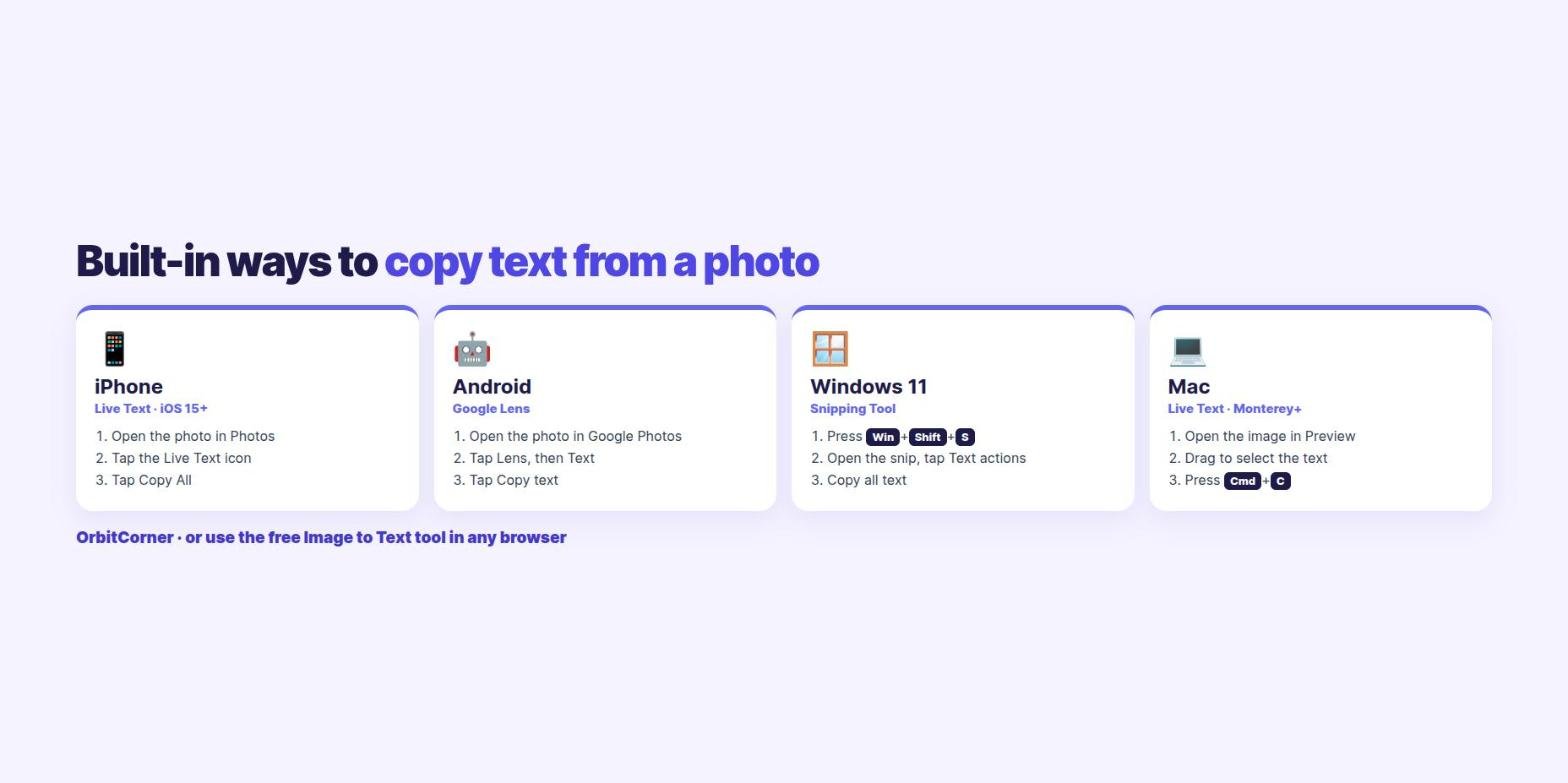
Short answer: On iPhone, open the photo and tap the Live Text icon. On Android, open it in Google Photos and tap Lens, then Text. On Windows 11, use the Snipping Tool’s Text actions. On a Mac, open the image in Preview and drag over the words. On any device, drop the picture into a free image to text converter and tap Copy.
How to copy text from an image on iPhone
iPhones with iOS 15 or later have Live Text, which reads words in any photo, screenshot or camera view.
- Open the photo or screenshot in the Photos app.
- Tap the Live Text icon (a small box with lines) in the corner.
- Tap Copy All, or touch and hold a word and drag the handles to pick just part of it.
- Paste it into Notes, Messages, email or anywhere else.
Live Text also works straight from the camera: point it at a sign or a page, tap the Live Text icon, and copy. If you do not see the icon, check that your iPhone is on iOS 15 or later and that Live Text is turned on in Settings, then General, then Language and Region.
How to copy text from an image on Android
Most Android phones use Google Lens, which is built into Google Photos and the Google app.
- Open the picture in Google Photos.
- Tap Lens. Depending on your version it is in the bottom row or under the More menu at the top.
- Tap Text, then Select all or drag to choose the words.
- Tap Copy text.
On Samsung Galaxy phones you can also open the photo in the Gallery app and tap the yellow T icon when it appears. On many recent Android phones, Circle to Search works too: hold the home button or navigation bar, circle the text, and tap Copy.
How to copy text from an image on Windows
Windows 11 can read text inside any screenshot with the Snipping Tool.
- Press Win + Shift + S and drag around the text, or open an image in the Snipping Tool.
- Click the notification to open the snip.
- Click Text actions in the toolbar.
- Click Copy all text, or select only the part you need.
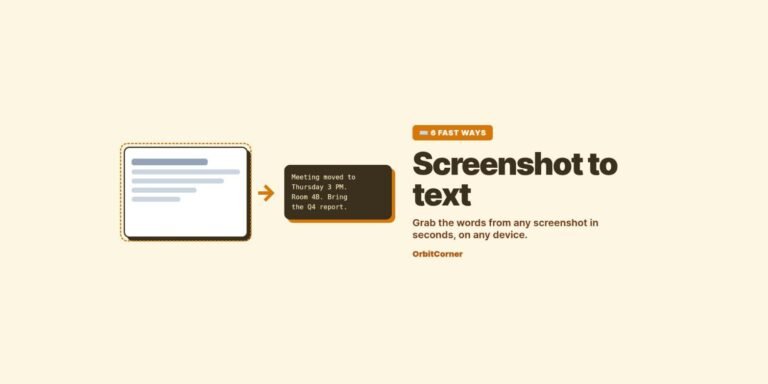
If you copy text from the screen often, install Microsoft’s free PowerToys and use Text Extractor: press Win + Shift + T, drag over any text, and it lands on your clipboard. More shortcuts are in our screenshot to text guide.
How to copy text from an image on Mac
Macs running macOS Monterey or later support Live Text in Preview, Photos, Safari and Quick Look.
- Open the image in Preview or Photos.
- Move the pointer over the text until it turns into a text cursor.
- Drag to select the words, or press Cmd + A to select all.
- Press Cmd + C to copy.
Copy text from an image in any browser (works everywhere)
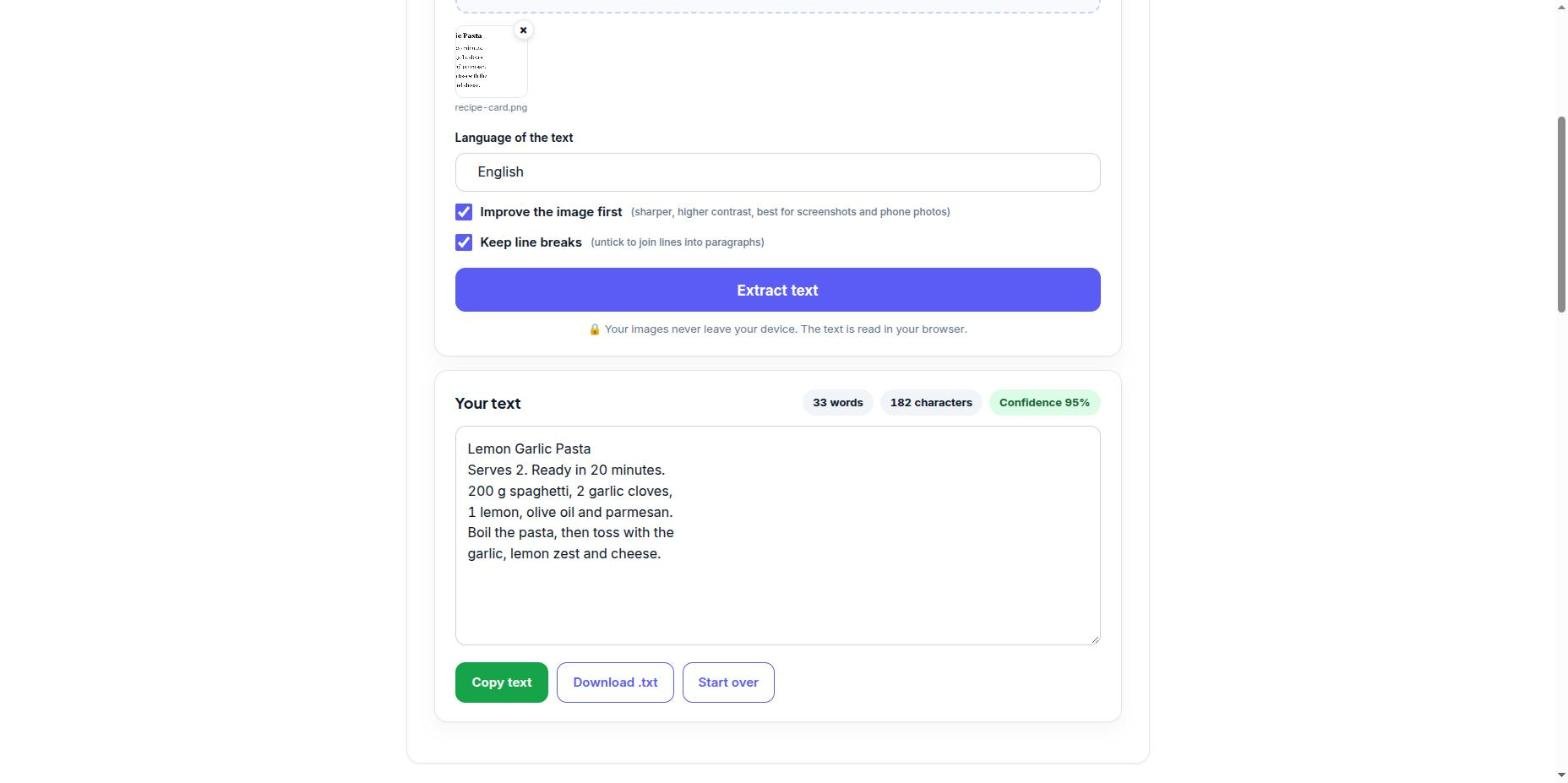
Built-in tools are great, but they do not cover everything: older phones, Chromebooks, work laptops where you cannot install apps, many images at once, or languages your phone does not read. That is where a browser tool helps. OrbitCorner’s Image to Text converter runs in any browser, is free, and the photo is read on your own device, so it is never uploaded.
- Open the Image to Text tool.
- Drop up to 10 images, tap Choose images, or press Ctrl + V to paste a screenshot.
- Pick the language of the text (20+ languages, including Spanish, Arabic, Hindi, Chinese and Japanese).
- Tap Extract text, then Copy text or Download .txt.
Copy text from any image, free
Paste a screenshot or drop a photo. Get editable text in seconds, in 20+ languages, with nothing uploaded.
Which method should you use?
| Situation | Best option |
|---|---|
| One photo on your phone | Live Text (iPhone) or Google Lens (Android) |
| Text on your computer screen | Snipping Tool (Windows) or Live Text (Mac) |
| Many images at once | The browser tool, up to 10 at a time |
| A language your phone does not read | The browser tool with the right language selected |
| A work or school laptop with no installs | The browser tool, nothing to install |
| Sensitive documents | Any on-device option: Live Text, Snipping Tool or the browser tool (it never uploads) |
Tips for a clean copy
- Crop to the text first. Less background means fewer stray characters.
- Zoom in before you take a screenshot of small print. Bigger letters read better.
- Choose the right language. Reading French with an English setting turns accents into wrong letters.
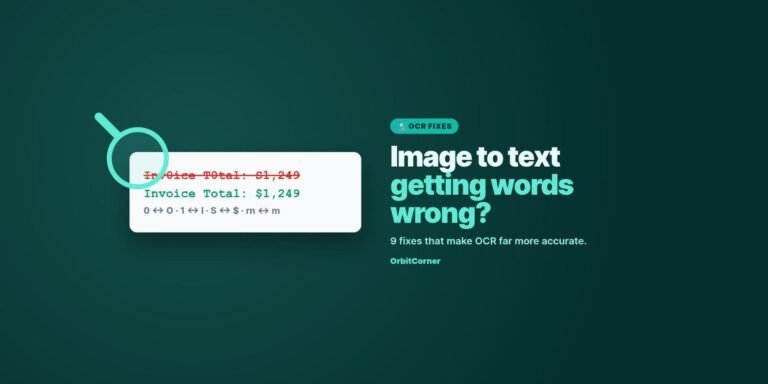
- Check numbers: 0 and O, 1 and l, and S and $ are the most common mix-ups.
If the result still has mistakes, our guide on why image to text gets words wrong has 9 fixes that make a big difference.
FAQ
Can I copy text from a picture for free?
Yes. iPhone, Android, Windows 11 and Mac all have free built-in options, and OrbitCorner’s Image to Text tool is free in any browser with no sign-up.
Can I copy handwritten text from an image?
Phone tools like Live Text and Google Lens can read neat handwriting. Most free OCR engines, including the one in our browser tool, are built for printed text, so handwriting results vary.
Is it safe to copy text from private documents?
Use an on-device method. Live Text, the Snipping Tool and OrbitCorner’s tool all read the image on your device, so it is not sent to a server.
Why is the Live Text icon missing on my iPhone?
Live Text needs iOS 15 or later on a supported iPhone, and the setting must be on. It also only appears when the photo has text it can detect.
Can I copy text from a PDF that will not let me select it?
Yes. That PDF is a scanned image. Take a screenshot of the page and use any method above.
Keep reading
- Screenshot to text: 6 fast ways on any device
- Image to text not accurate? 9 fixes for better OCR results
- How to reduce photo size in KB on any device