Image to Text Not Accurate? 9 Fixes for Better OCR Results
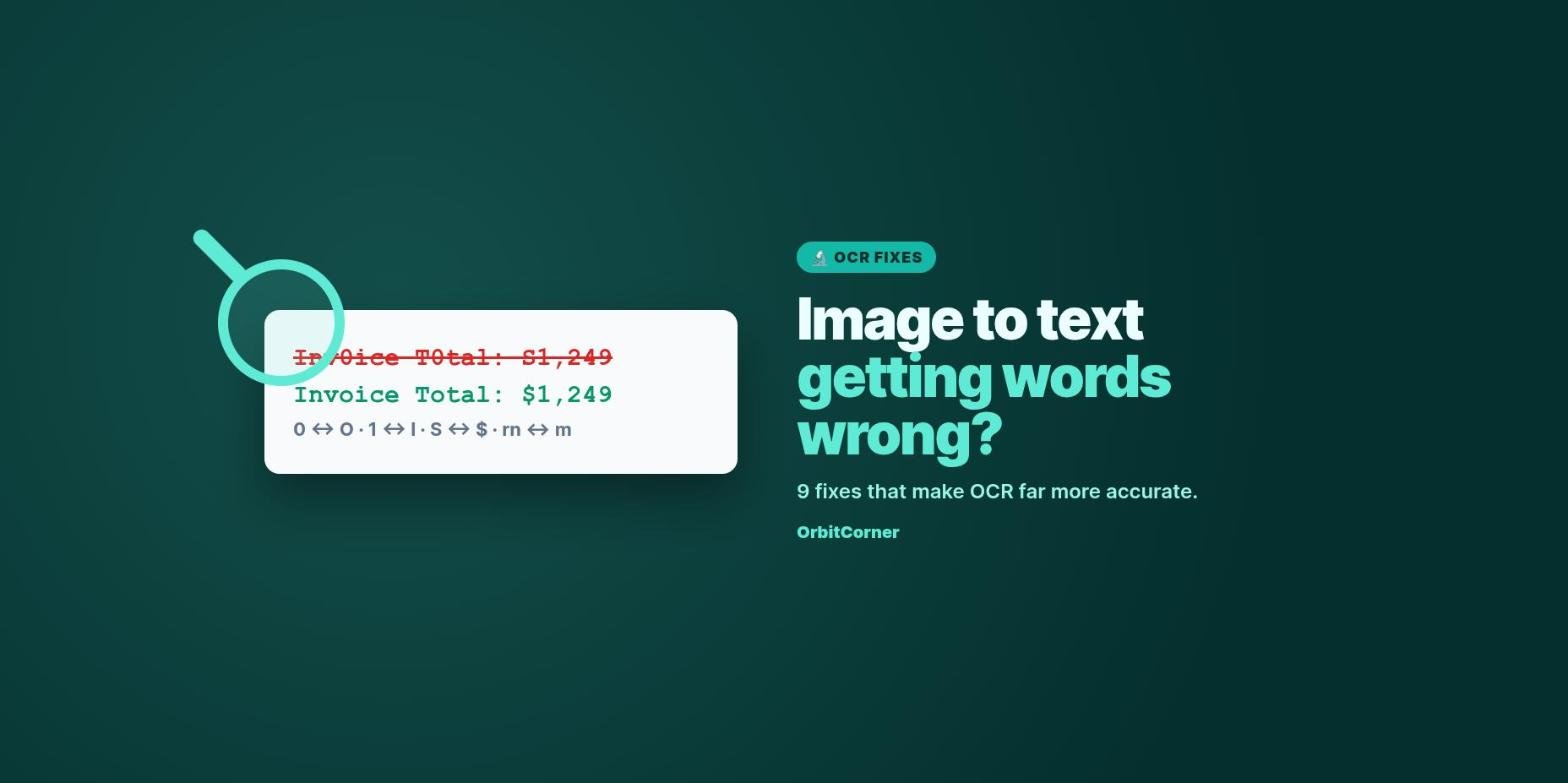
You ran an image through a text converter and got back “Inv0ice T0tal: S1,249” instead of “Invoice Total: $1,249”. Or half a page of random symbols. Or nothing at all.
OCR (optical character recognition) is very accurate on a clean image and surprisingly bad on a messy one. The fix is almost always the picture, not the tool. Here are 9 fixes, in the order that helps most.
Short answer: Select the correct language, use a sharp, evenly lit photo taken straight on, crop to just the text, and make sure the letters are big and dark on a light background. Then run it again in an image to text tool with image improvement turned on.
Why image to text gets words wrong
An OCR engine first cleans up the image, then finds lines of text, then guesses each letter. Every problem in the picture, like blur, shadows, tilt, tiny letters or busy backgrounds, makes those guesses harder. The documentation for Tesseract, the open-source engine behind many free OCR tools, says plainly that output quality depends on how good the input image is.
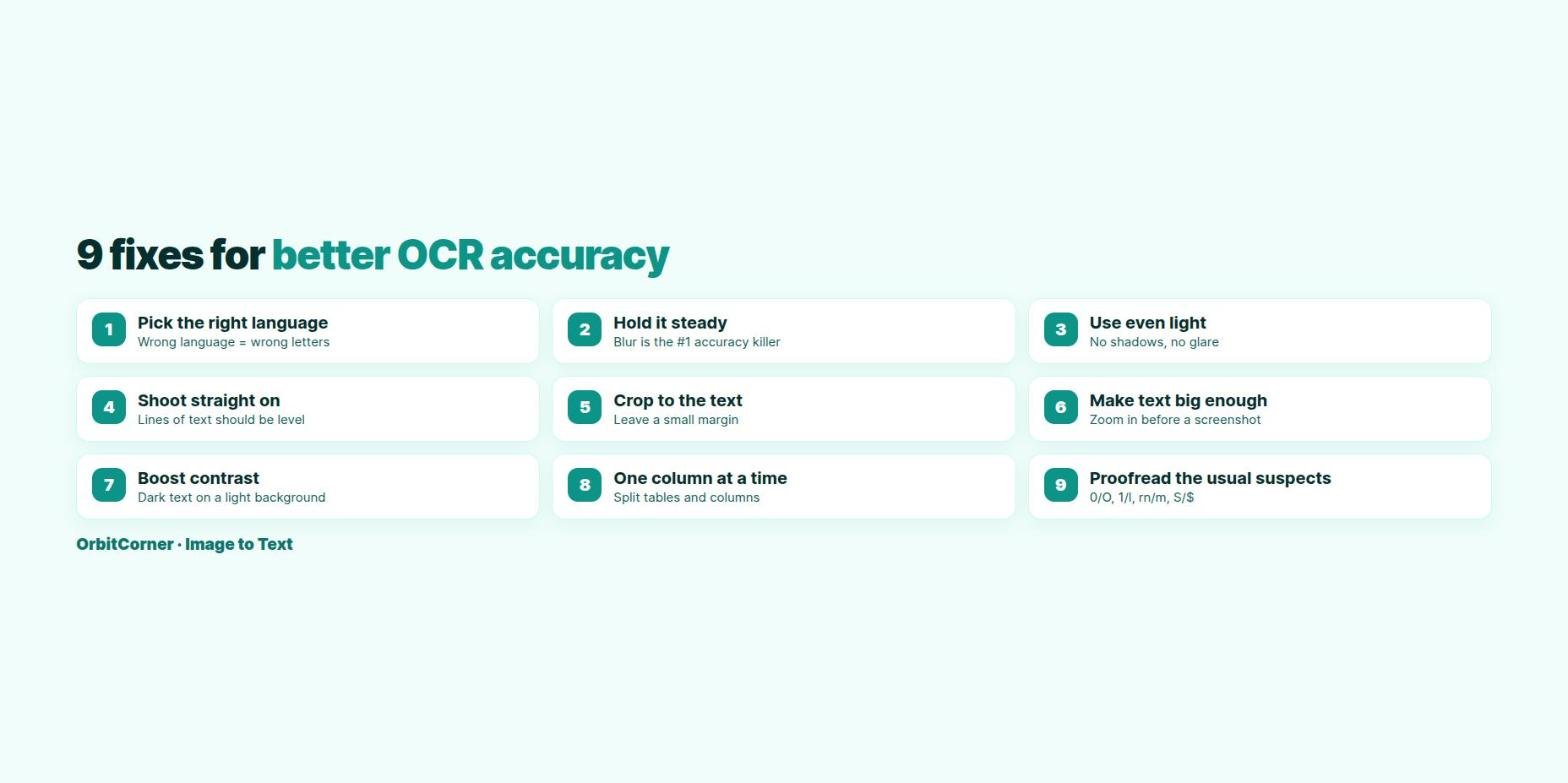
1. Pick the right language
This is the most common mistake and the easiest fix. An English model reading Spanish, German or Turkish turns accented letters into wrong characters, and an English model cannot read Arabic, Hindi or Chinese at all. In OrbitCorner’s tool, choose the language from the list. If the text mixes your language with English, keep Also read English ticked.
2. Hold it steady (blur is the biggest problem)
A slightly blurry photo looks fine to you, but letter edges melt together for OCR. Rest your elbows on the table, tap the screen to focus on the text, and take two shots so you can keep the sharper one.
3. Use even light
Shadows across a page and glare on glossy paper hide parts of letters. Shoot near a window or under a ceiling light, and turn off the flash on shiny paper.
4. Shoot straight on
Lines of text should run level, not slope downhill. Tesseract’s guide notes that even a small tilt cuts accuracy. Hold the phone parallel to the page, or use your phone’s document scanner (in Notes on iPhone or Google Drive on Android), which straightens pages automatically.
5. Crop to the text, with a small margin
Remove the table, your fingers, logos and photos around the text. But leave a little white space: the Tesseract guide recommends a small border around the text, because letters touching the edge are often missed.
6. Make the text big enough
Tesseract works best when letters are large enough, roughly equivalent to a page scanned at 300 DPI. On a screen, zoom in before you take the screenshot. On paper, move closer instead of zooming the camera digitally. OrbitCorner’s tool upscales small images automatically when Improve the image first is on.
7. Boost the contrast
Dark text on a light background reads best. Grey on grey, light text on a photo, or a colored background all lower accuracy. The “Improve the image first” option converts the image to grayscale and stretches the contrast, which helps most screenshots and phone photos.
8. One column at a time
Newspapers, menus, two-column PDFs and tables confuse line detection, so words from different columns get mixed together. Crop each column or table section into its own image, then run them in order. The browser tool takes up to 10 images and joins the text for you.
9. Proofread the usual suspects
Even a great result needs a quick check. These pairs are the most common OCR mix-ups:
| Looks like | Often read as |
|---|---|
| O (letter) | 0 (zero) |
| l (lowercase L) or I | 1 (one) |
| S | $ or 5 |
| rn | m |
| cl | d |
| B | 8 |
Use your editor’s Find feature to search for stray zeros inside words, and always double-check passwords, account numbers and amounts.
Run it again with a cleaner image
Pick the right language, keep “Improve the image first” on, and compare the confidence score.
How to read the confidence score
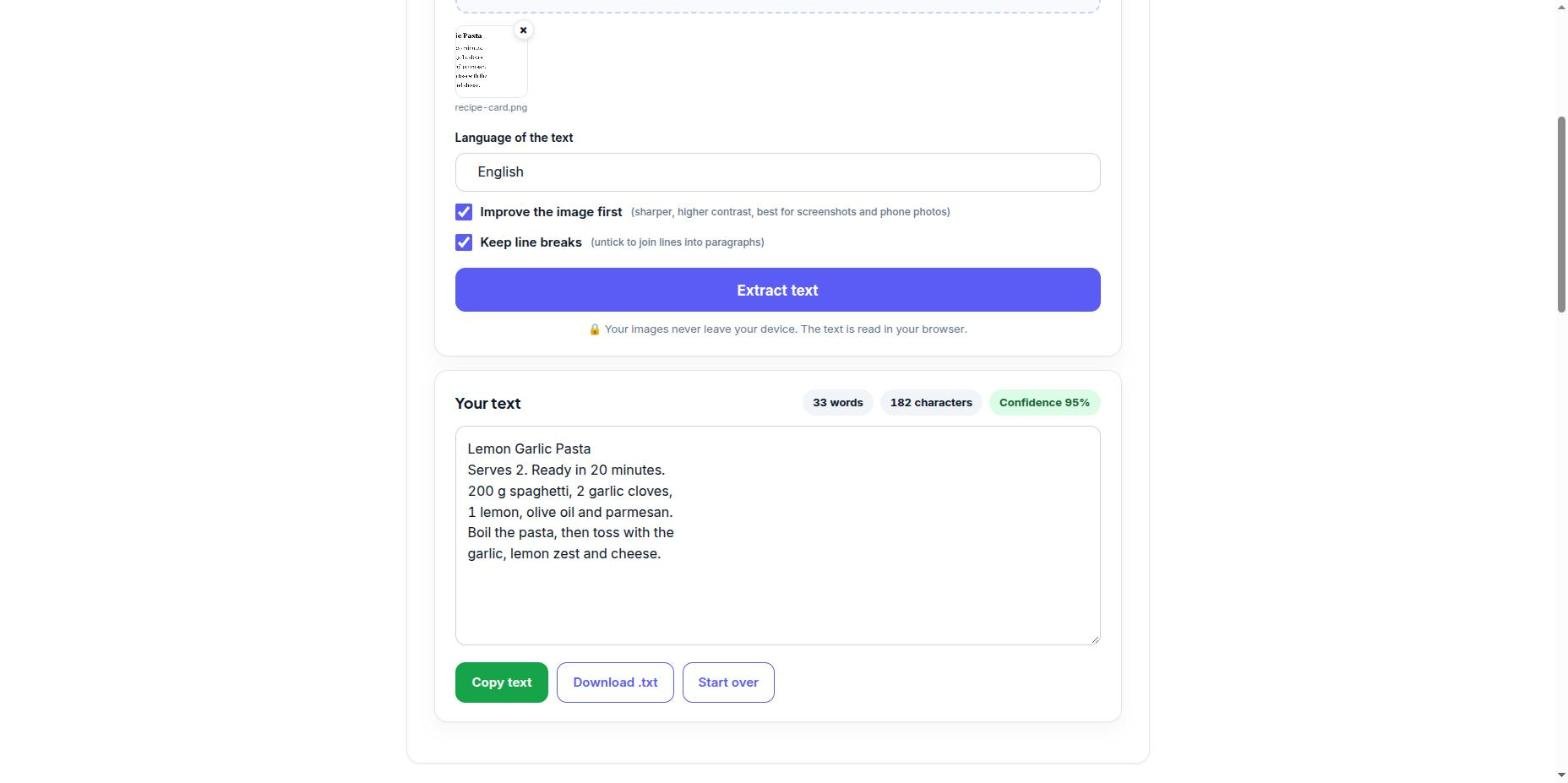
OrbitCorner’s Image to Text tool shows a confidence score after each run. Above about 85 percent, a quick proofread is usually all you need. Between 60 and 85 percent, expect a few wrong letters. Below 60 percent, fix the image using the steps above and try again: a better photo almost always beats editing a bad result.
What free OCR cannot do well
- Handwriting. Most free OCR engines, including Tesseract, are trained on printed text. Neat block capitals may work. Cursive usually will not.
- Decorative fonts like scripts, heavy outlines or text on curved surfaces.
- Very low resolution images, such as thumbnails or heavily compressed photos from chat apps. Ask for the original file instead.
- Complex layouts like forms and tables. You will get the words, but not the boxes and columns.
For handwriting, phone tools like Live Text and Google Lens often do better. Our guide on copying text from an image on any device shows how to use them.
FAQ
Why does my image to text result have random symbols?
Usually the image has background patterns, logos or noise that the engine tries to read as letters. Crop tightly to the text and turn on image improvement.
What resolution is best for OCR?
For scans, 300 DPI is the standard recommendation. For photos and screenshots, make sure the letters are clearly readable when you zoom to 100 percent.
Does OCR work on handwriting?
Free OCR engines like Tesseract are designed for printed text. Phone tools such as Live Text and Google Lens handle neat handwriting better.
Why are my numbers wrong after OCR?
Look for the usual mix-ups: 0 and O, 1 and l, 5 and S, 8 and B. Better contrast and larger text reduce them.
Is a higher confidence score always correct?
No. It is the engine’s own estimate. Always proofread names, numbers and codes.
Keep reading
- How to copy text from an image on iPhone, Android, Windows and Mac
- Screenshot to text: 6 fast ways on any device