Screenshot to Text: 6 Fast Ways to Grab Text From Any Screenshot
You screenshot an error message, a booking code, a slide from a meeting or a quote from an app that will not let you select text. Now you need those words as real, editable text.
Retyping is the slow way. Here are 6 fast ways to turn a screenshot into text, with the exact shortcut for each device.
Short answer: On Windows, press Win + Shift + S and use Text actions. On Mac, take the screenshot with Cmd + Shift + 4 and select the text with Live Text. On iPhone and Android, open the screenshot and use Live Text or Google Lens. On any device, paste the screenshot into a free screenshot to text tool with Ctrl + V.
1. Windows 11: Snipping Tool text actions
This is the quickest free option on Windows 11, and it is already installed.
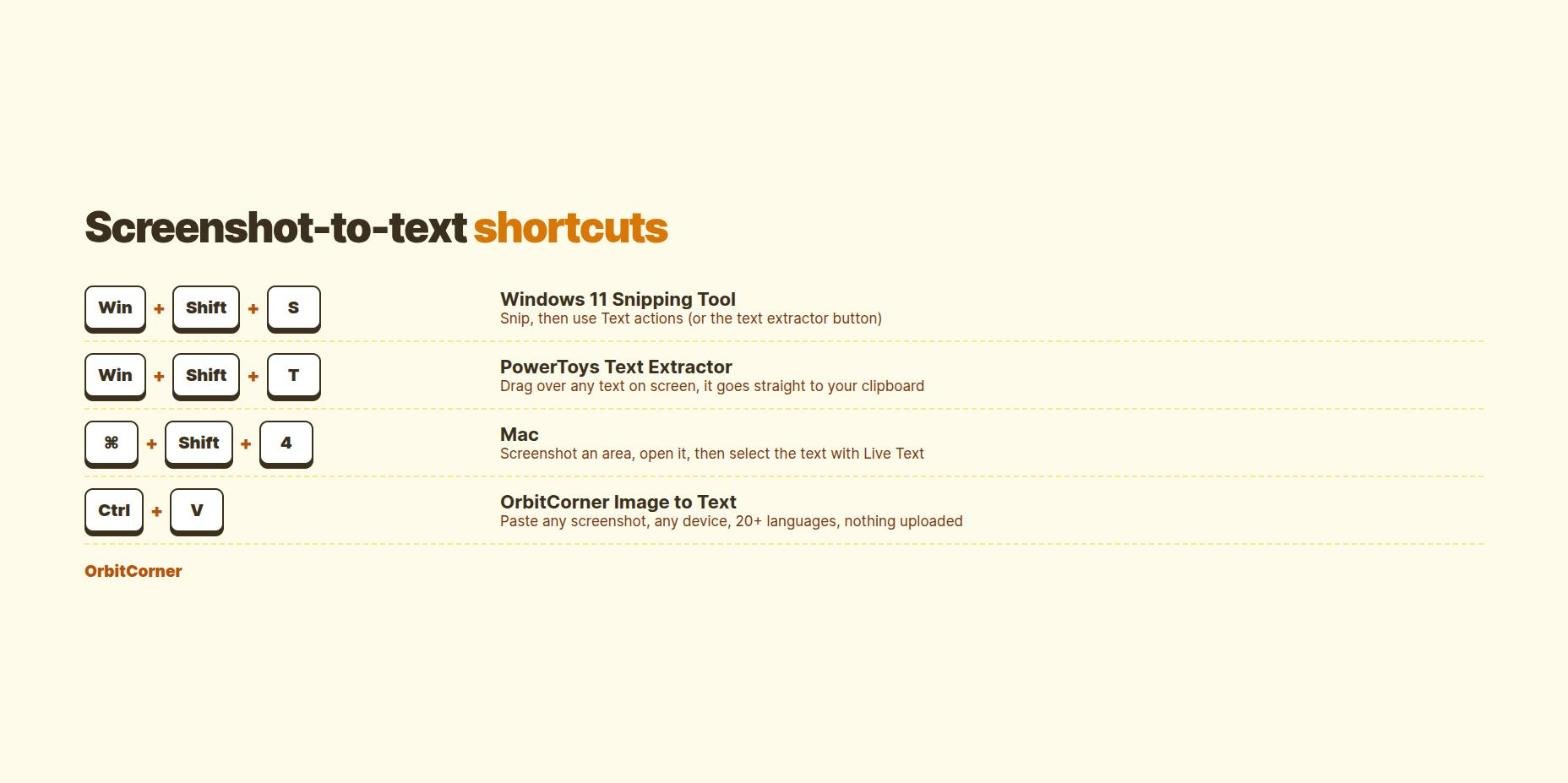
- Press Win + Shift + S and drag around the text.
- Click the preview that pops up in the corner.
- Click Text actions in the Snipping Tool toolbar.
- Click Copy all text. You can also hide emails and phone numbers with Quick redact before sharing.
2. Windows: PowerToys Text Extractor (no screenshot needed)
If you grab text from the screen several times a day, Microsoft’s free PowerToys app is faster still. Turn on Text Extractor, press Win + Shift + T, and drag over any text on the screen. It is copied to the clipboard right away, with no image file saved.
3. Mac: screenshot plus Live Text
- Press Cmd + Shift + 4 and drag around the text.
- Click the thumbnail that appears, or open the saved file in Preview.
- Drag over the words to select them, then press Cmd + C.
On macOS Monterey or later, Live Text also works in Photos, Safari and Quick Look, so you can often copy text from an image without taking a screenshot at all.
4. iPhone: screenshot to text with Live Text
- Take the screenshot (side button plus volume up).
- Tap the thumbnail, or open it later in Photos.
- Touch and hold a word, drag the handles, then tap Copy. Or tap the Live Text icon and choose Copy All.
5. Android: Google Lens or Circle to Search
- Open the screenshot in Google Photos.
- Tap Lens, then Text.
- Select the words and tap Copy text.
On phones with Circle to Search, you can skip the screenshot: hold the home button or navigation bar, circle the text on screen, and tap Copy.
6. Any device: paste into a free browser tool
When the built-in options are missing or not good enough, use OrbitCorner’s Image to Text tool. It is the easiest way to handle screenshots on a Chromebook, a locked-down work laptop, or when you have a whole batch to convert.
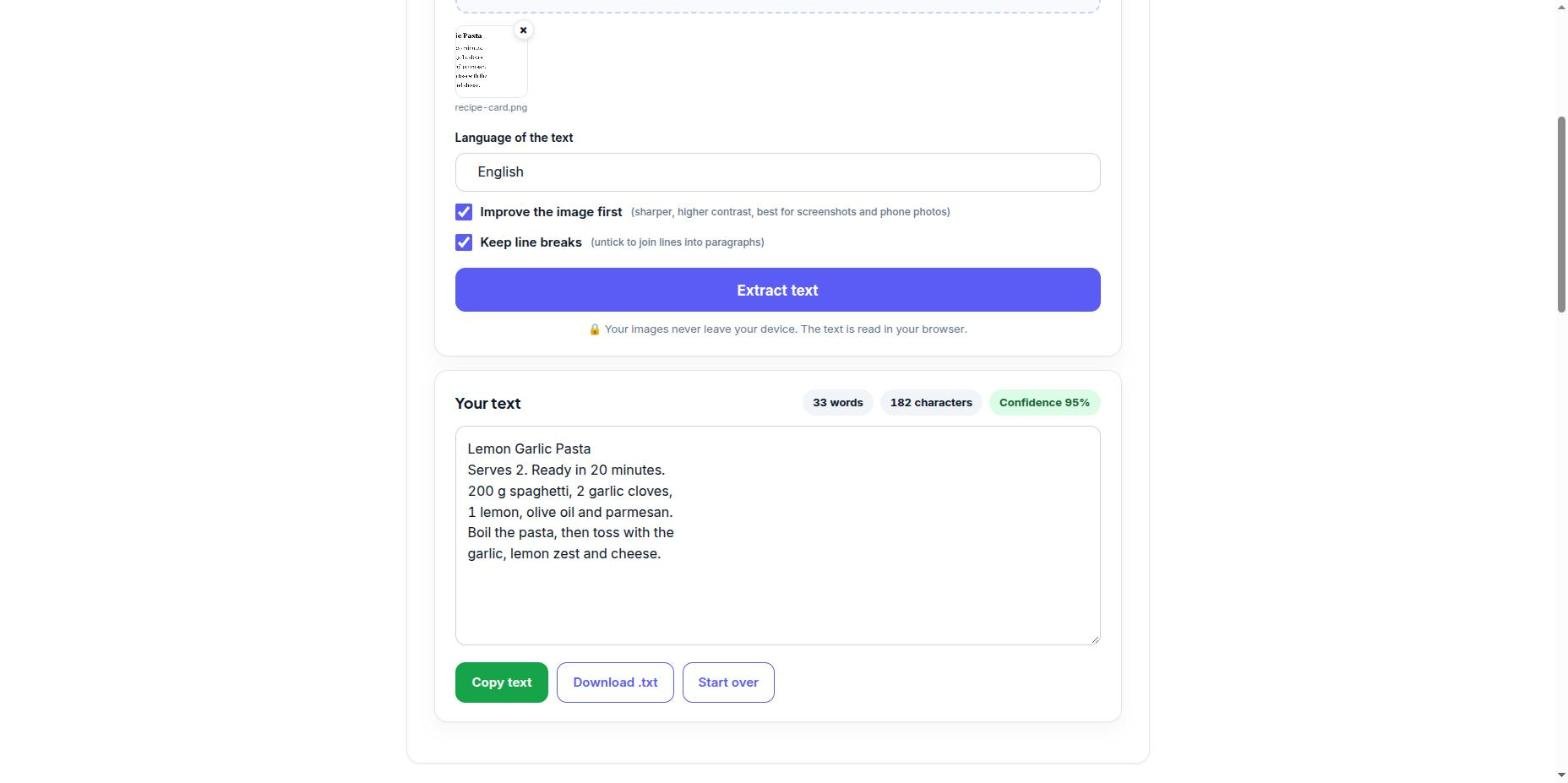
- Take your screenshot as usual, so it is on your clipboard.
- Open the Image to Text tool and press Ctrl + V (Cmd + V on Mac). Or drop up to 10 screenshot files.
- Pick the language and tap Extract text.
- Tap Copy text or download a .txt file.
The screenshot is read in your browser, so private chats, codes and documents never leave your device.
Turn a screenshot into text now
Press Ctrl + V on the page to paste a screenshot. Free, 20+ languages, nothing uploaded.
All 6 methods at a glance
| Device | Shortcut or app | Best for |
|---|---|---|
| Windows 11 | Win + Shift + S, then Text actions | Quick one-off grabs |
| Windows (PowerToys) | Win + Shift + T | Grabbing text many times a day |
| Mac | Cmd + Shift + 4, then Live Text | Anything on a Mac screen |
| iPhone | Screenshot, then Live Text | Apps that block text selection |
| Android | Google Lens or Circle to Search | Anything on an Android screen |
| Any browser | Image to Text, Ctrl + V | Batches, other languages, no installs |
Get cleaner text from screenshots
- Zoom in first. Text that is tiny on screen is tiny in the screenshot too. Press Ctrl and + (Cmd and + on Mac) before you capture.
- Capture only the text you need. Menus, icons and buttons add junk characters.
- Dark mode is fine, but very low contrast (grey on grey) reads badly. The browser tool’s “Improve the image first” option boosts contrast for you.
- Split columns. Screenshot a two-column layout one column at a time so lines do not get mixed.
Still seeing wrong letters? See 9 fixes for better OCR accuracy.
FAQ
What is the shortcut for screenshot to text on Windows?
On Windows 11, press Win + Shift + S, open the snip, and click Text actions. With PowerToys installed, Win + Shift + T copies text from the screen directly.
Can I convert a screenshot to text on a Chromebook?
Yes. Take the screenshot, open OrbitCorner’s Image to Text tool in Chrome, and press Ctrl + V to paste it.
Can I turn many screenshots into text at once?
Yes. The browser tool accepts up to 10 images in one go and joins the text in order.
Is screenshot to text free?
All 6 methods in this guide are free. None needs an account.
Does it work with screenshots in other languages?
Yes. Phone tools read many languages, and the browser tool has 20+ languages to choose from, including Arabic, Hindi, Russian, Chinese, Japanese and Korean.
Keep reading
- How to copy text from an image on iPhone, Android, Windows and Mac
- Image to text not accurate? 9 fixes for better OCR results