How to Reduce Photo Size in KB (Phone, PC or Online, Free)
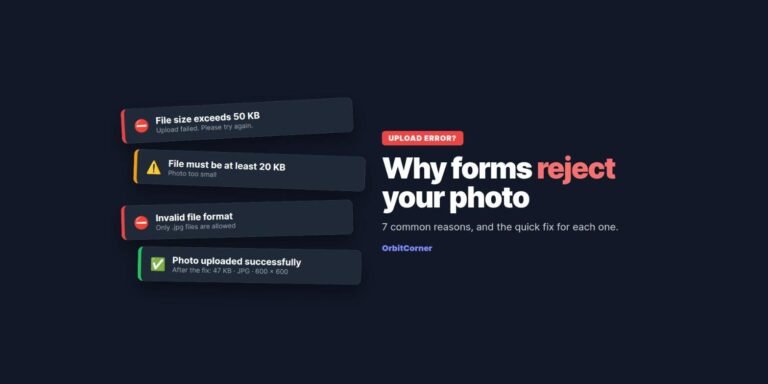
You found the form, filled in every box, and then the photo upload fails: “File size must be less than 50 KB.” Your phone photo is 4 MB. That is about 80 times too big, and the form gives you no tool to fix it.
Here is how to reduce a photo to an exact size in KB on any device, plus the two settings that decide file size, so the result still looks sharp.
Short answer: Open a free compress-to-KB tool, tap the size your form asks for (for example 20–50 KB), and download the JPG. It works on phones and computers, and the photo never leaves your device. On Windows you can also use the Photos app, and on a Mac you can use Preview.
Why your photo is so big
Modern phones shoot 12 to 50 megapixel photos, which usually come out at 2–6 MB. Online forms, especially government, visa, exam and job portals, often cap uploads at 20 KB, 50 KB, 100 KB or 240 KB to keep their systems fast. Remember: 1 MB = 1,024 KB, so a 4 MB photo is about 4,100 KB.
The two dials that control file size
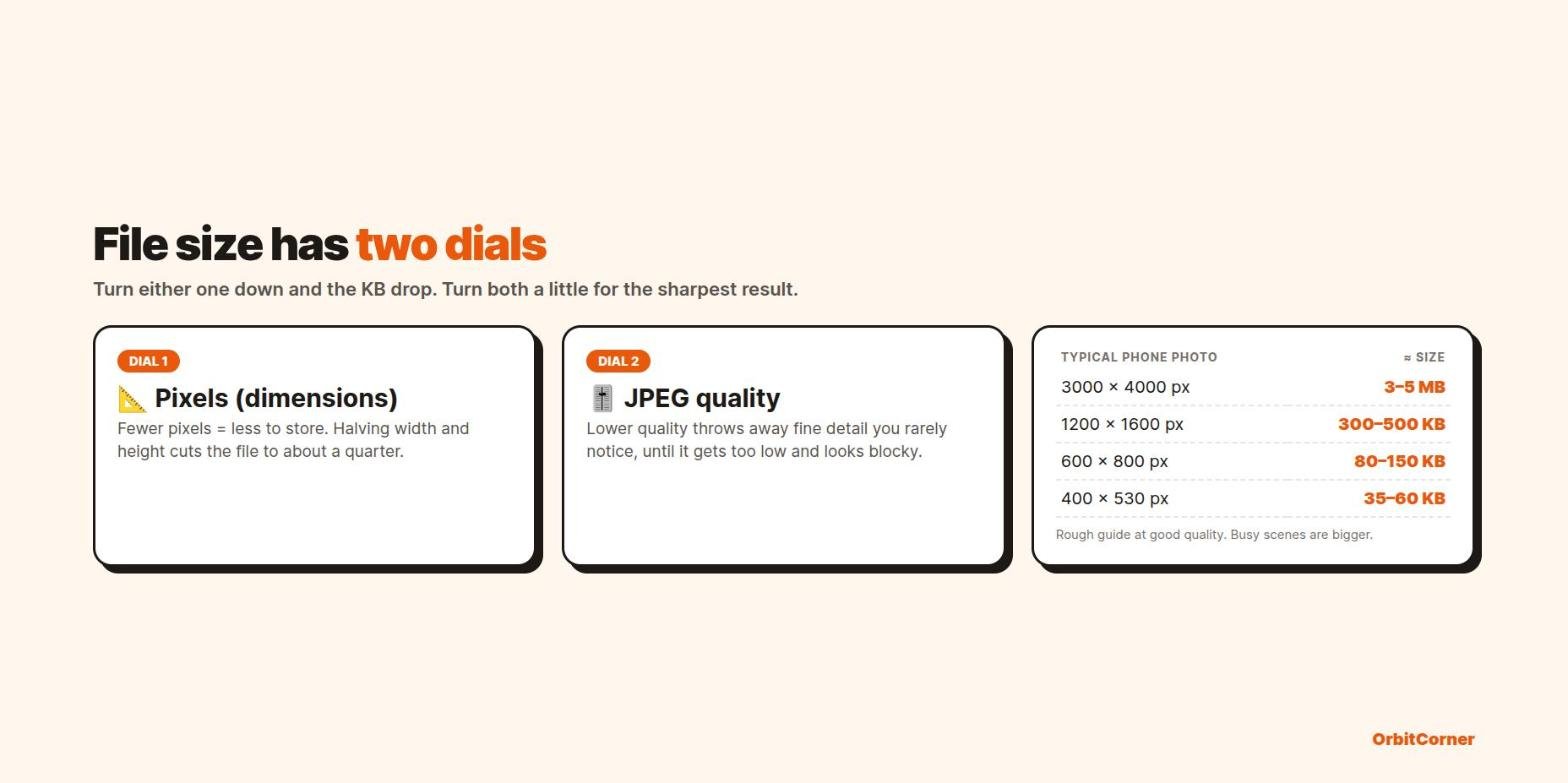
Every JPG photo has two dials. Pixels (width × height) set how much there is to store. Halving both the width and the height cuts the file to roughly a quarter. JPEG quality sets how much fine detail is kept. Dropping from 95% to about 80% often halves the file with little visible change, but very low quality makes a photo look blocky.
The trick for small limits is to turn both dials a little instead of one dial a lot. A 500 × 650 pixel photo at 80% quality looks far better than a 3000 × 4000 photo squeezed down to 5% quality, even at the same KB.
Method 1: The fastest way on any device (free)
Our Compress Image to KB tool does the dial-turning for you. It searches for the highest quality that fits your limit, and only reduces the pixels if it has to.
- Open the tool and tap Choose photo, or drag the photo in.
- Tap a preset such as Form photo (20–50 KB), Under 100 KB or US visa photo, or type your own minimum and maximum.
- If the form gives exact pixels (like 600 × 600), choose Exact pixel size.
- Press Compress photo and then Download JPG.
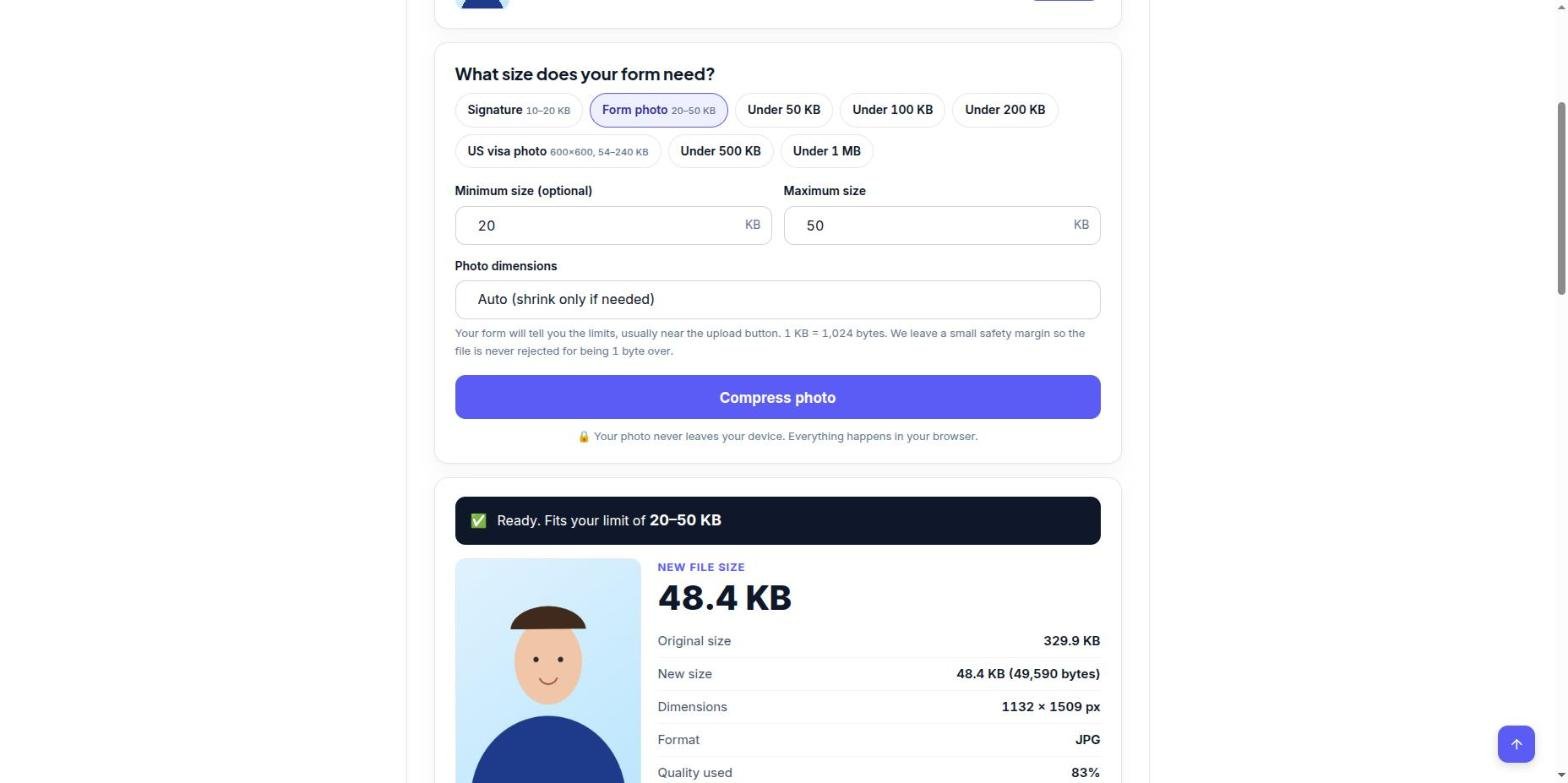
Two details matter. First, it handles minimum sizes too, which many forms have and most tools ignore. Second, everything runs in your browser, so ID photos and signatures are never uploaded anywhere.
Compress your photo now
Pick 20 KB, 50 KB, 100 KB or any size. Free, no sign-up, nothing uploaded.
Method 2: Windows 11 Photos app
- Open the photo in the Photos app.
- Click the … (See more) menu and choose Resize image.
- Enter a smaller size in pixels or percentage, and lower the Quality slider for JPG.
- The newer Photos app shows the new file size before you save. Adjust until it is under your limit, then Save a copy.
This works well for limits like “under 500 KB”. For tight ranges such as 20–50 KB, it can take a few tries.
Method 3: Mac Preview
- Open the photo in Preview.
- Go to Tools › Adjust Size and lower the width (keep “Scale proportionally” ticked).
- Choose File › Export, pick JPEG, and drag the Quality slider. Preview shows the resulting file size as you drag.
- Save when the size is under your limit.
Method 4: iPhone and Android
Neither iPhone nor Android has a built-in “make this exactly 50 KB” setting. The simplest option is to open the compress tool in your phone’s browser and pick the photo from your gallery. It works the same as on a computer.
iPhone tip: many forms reject the iPhone’s HEIC format. To shoot JPGs instead, go to Settings › Camera › Formats and choose Most Compatible. For an existing HEIC photo, share or save it as a JPG first.
Common upload limits
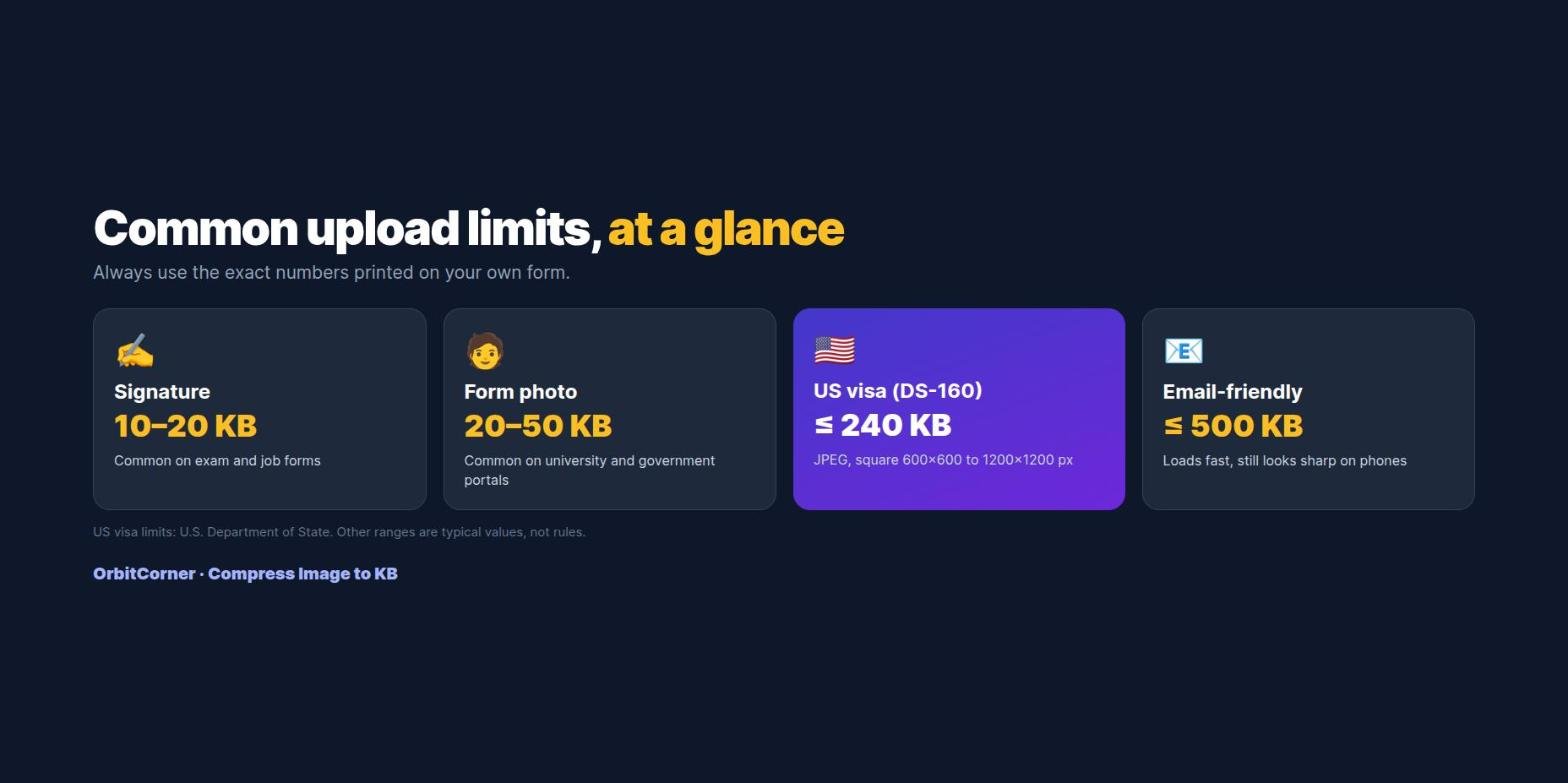
| What you are uploading | Typical limit | Notes |
|---|---|---|
| Scanned signature | 10–20 KB | Scan in black ink on white paper |
| Photo for exam, job or university forms | 20–50 KB | Often a minimum and a maximum |
| US visa photo (DS-160) | Up to 240 KB | JPEG, square, 600–1200 px. See the full guide |
| Photo to email or chat | Under 500 KB | Looks sharp on phones, sends fast |
6 tips to keep it sharp
- Crop first. Cut away extra background so the pixels go to your face or signature.
- Use a plain background. Busy backgrounds eat up KB; plain walls compress small.
- Start from the original. Compressing a photo that was already compressed (for example, one saved from WhatsApp) loses quality twice.
- Save as JPG. PNG is great for screenshots but usually 3–5 times bigger for photos.
- Check the pixels too. Some forms want exact dimensions as well as a KB limit.
- Zoom in before uploading. If the face or signature looks smudged, use a slightly larger limit or fewer pixels.
Quick answers
How do I reduce a photo to 20 KB?
Use a tool that targets a size, like the Compress Image to KB tool, and set the maximum to 20. At 20 KB the tool will usually reduce the pixels to around 300–450 pixels wide so the photo stays clear.
Does reducing KB lower the quality?
A little, but usually not in a way you can see if you reduce pixels and quality together. Problems start when a large photo is squeezed to a tiny size at very low quality.
Why does my 50 KB file show as 51 KB?
Some systems count 1 KB as 1,000 bytes, others as 1,024 bytes. Aim slightly under the limit. Our tool leaves a small safety margin for this reason.
The form says my file is too small. What now?
Some forms set a minimum, like 20 KB. Enter that minimum in the tool and it will bring the file up to it without changing the picture. Read more in why photo uploads get rejected.
Related guides
- US visa photo size: 600×600, under 240 KB and the 54 KB rule
- Photo upload rejected? 7 reasons and how to fix each