How to Insert a Signature in Word and Google Docs (Free)
Short answer: make a signature image with a transparent background (PNG). In Word, go to Insert › Pictures, add the image, and set Wrap Text › In Front of Text. Save it as AutoText to reuse it in one click. In Google Docs, go to Insert › Image › Upload from computer, or draw one with Insert › Drawing. Full steps for both are below.
Letters, quotes, offer letters, cover letters and invoices often start life as a Word file or a Google Doc. Adding your signature before you send them makes them look finished and professional, and you don’t have to print, sign and scan anything.
Neither Word nor Google Docs has a simple “sign here” button for your own documents. Instead, you add your signature as a picture. This guide shows the best way in each app, how to stop the signature from jumping around, and how to reuse it in one click.
Step 1: Get a signature image with a transparent background
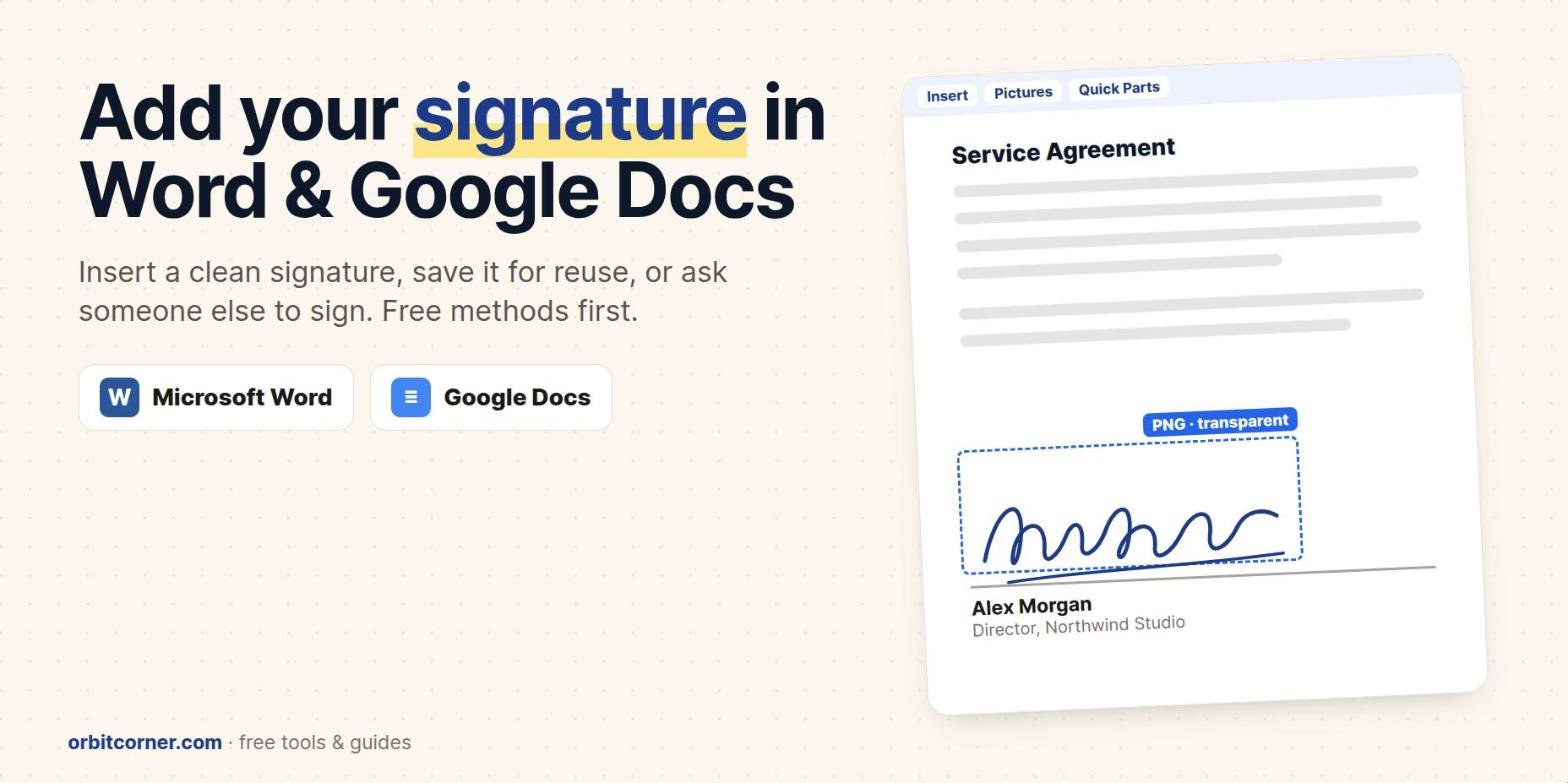
This one step decides whether the result looks real or pasted on. A photo of your signature has a white or grey paper background, and that background covers the line and any text under it.
Our free Signature Generator solves this. You can:
- Draw your signature with a mouse, finger or stylus, with smooth, pen-like ink;
- Type your name and pick from a dozen handwriting fonts; or
- Upload a photo of your real signature on paper. The tool removes the paper background for you.
Then download the PNG. It is trimmed to the ink, with a transparent background. If a form won’t accept PNG files, the tool also offers a JPG on white. Everything runs in your browser, so your signature never leaves your device.
How to insert a signature in Word (Windows)
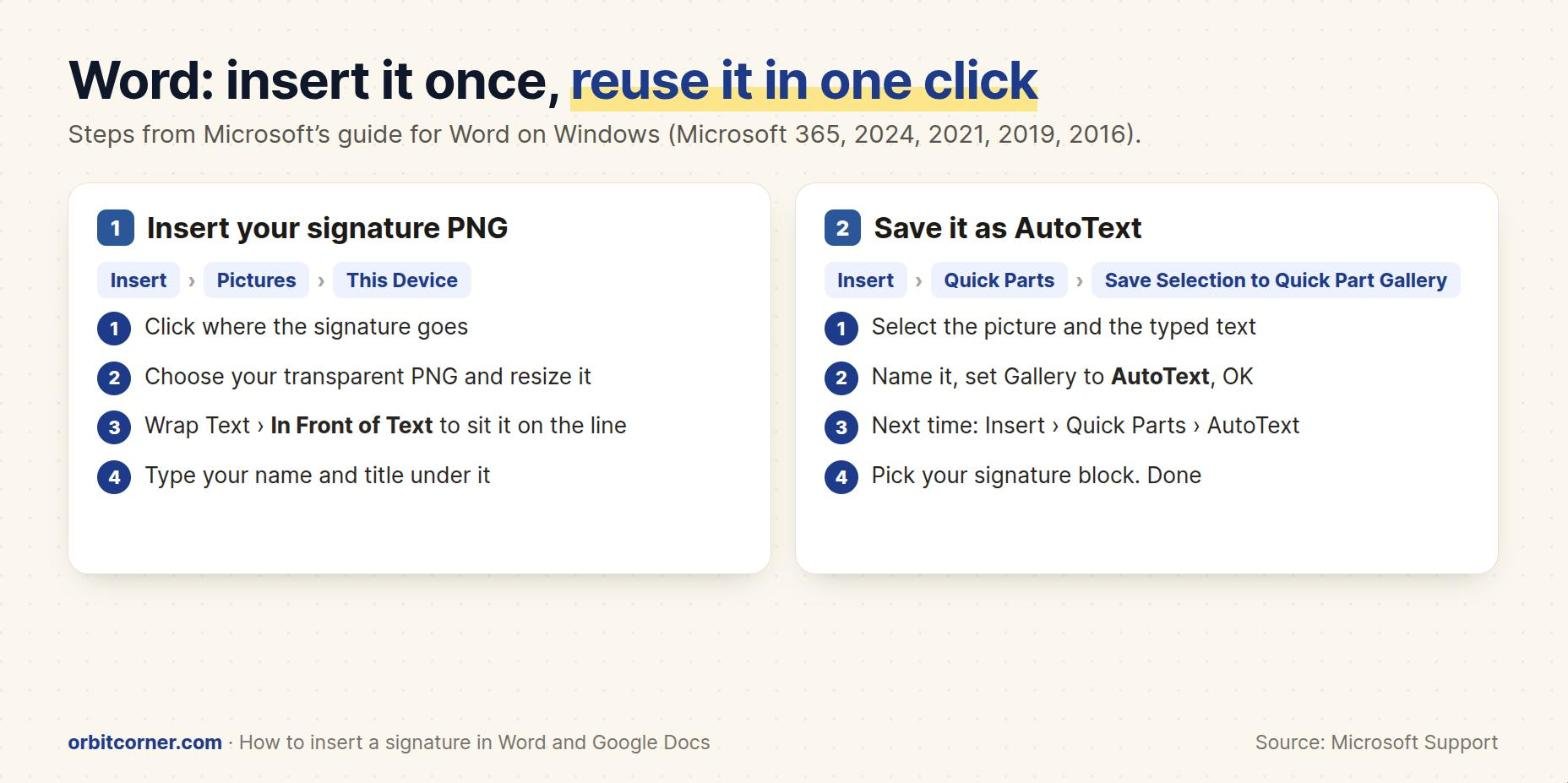
These steps follow Microsoft’s own guide and work in Word for Microsoft 365, Word 2024, 2021, 2019 and 2016.
Insert the signature picture
- Click where you want the signature, usually above your typed name.
- Go to Insert › Pictures › This Device and choose your signature PNG.
- Drag a corner handle to resize it. A signature about as tall as two lines of text looks natural.
- With the picture selected, open the Picture Format tab and choose Wrap Text › In Front of Text. Now you can drag the signature anywhere, including over the signature line, without pushing text around.
- If the image has extra space around it, use Picture Format › Crop.
Save it as AutoText so you can reuse it
If you sign documents often, save your signature with your typed name, job title and contact details as one reusable block:
- Type your name and title under the signature, then select the picture and the text together.
- Go to Insert › Quick Parts › Save Selection to Quick Part Gallery.
- Give it a short name, such as “My signature”. In the Gallery list, choose AutoText, then click OK.
- Next time, click where you want it and choose Insert › Quick Parts › AutoText, then pick your signature block.
Other options in Word
- Draw it: if your Word has a Draw tab, pick a pen and sign with a touchscreen, stylus or mouse. This is quick, but a mouse signature rarely looks good.
- Signature Line: Insert › Signature Line › Microsoft Office Signature Line adds a formal line with the signer’s name and title. It is meant for a certificate-based digital signature, which is a different thing from pasting your handwriting, so most people don’t need it.
How to insert a signature in Word on a Mac
Word for Mac uses the same picture method, with slightly different menus:
- Click where the signature goes, then choose Insert › Pictures › Picture from File and pick your PNG.
- Resize it, then use Picture Format › Wrap Text › In Front of Text.
- To reuse it, select the picture and your typed details, then choose Insert › AutoText › New and give it a name.
In Word for the web, Insert › Pictures works the same way, so you can still add your signature image in the browser.
How to insert a signature in Google Docs
Method 1: Upload your signature image (looks best)
- Click where the signature goes.
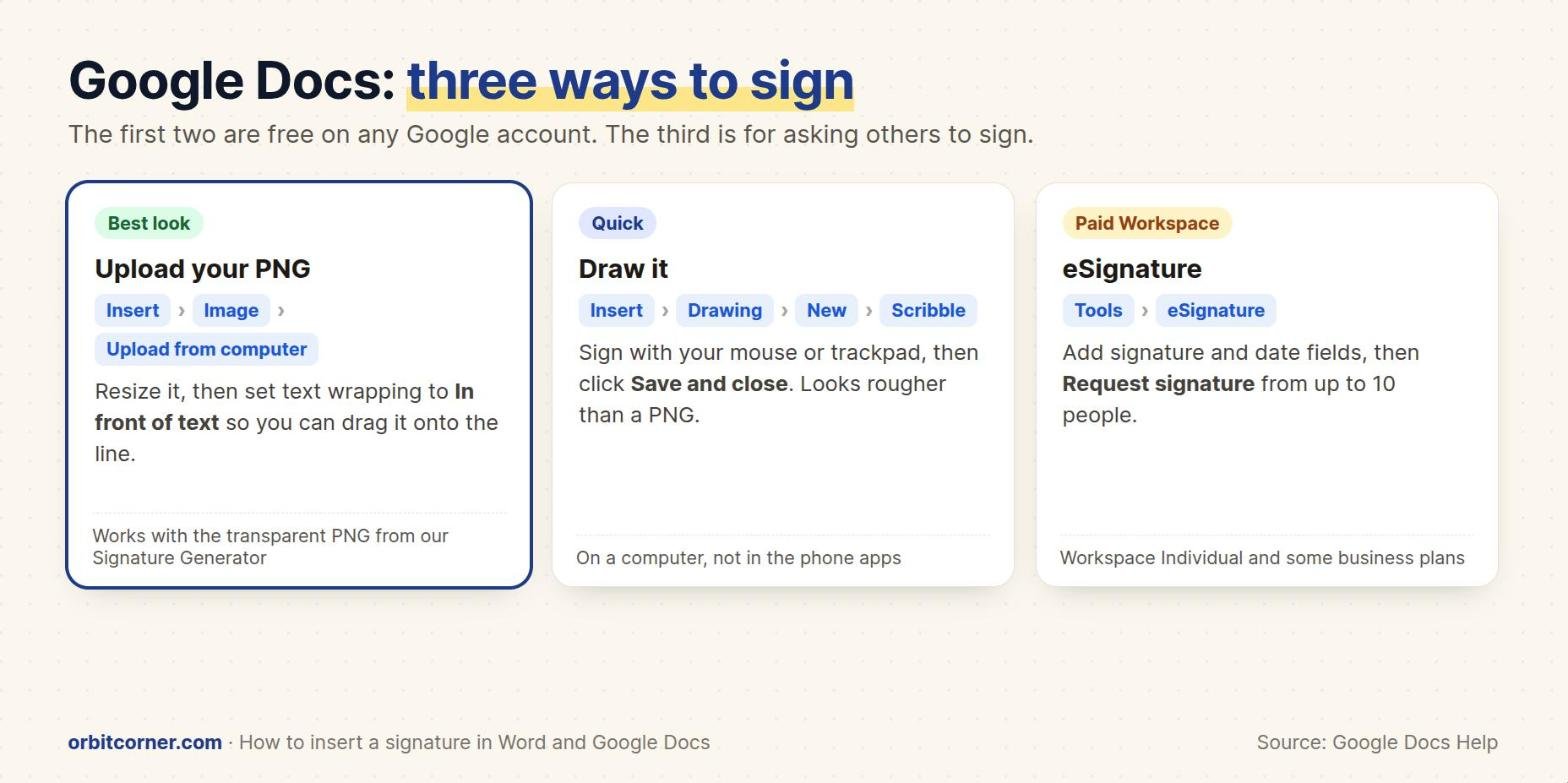
- Go to Insert › Image › Upload from computer and choose your PNG.
- Click the image and drag a corner to resize it.
- In the bar that appears under the image, choose In front of text. Now you can drag the signature onto the line.
Docs keeps transparency, so a transparent PNG sits on the line with no white box.
Method 2: Draw your signature in Docs
- Go to Insert › Drawing › + New.
- Open the Line menu and choose Scribble.
- Sign with your mouse, trackpad or touchscreen. Each stroke can be moved or deleted.
- Click Save and close. Resize the drawing and set it to In front of text.
This method works on a computer only. The Google Docs apps for iPhone and Android can’t create drawings, so make a PNG first if you work on your phone.
Method 3: Google eSignature (for getting others to sign)
If you need someone else to sign, Google Docs has a built-in eSignature tool under Tools › eSignature. You add signature and date fields, then send a request. Google says it supports up to 10 signers and 200 fields. It is only available on certain paid plans, including Google Workspace Individual and Business Standard and Plus, so most free Gmail accounts won’t see it.
Which method should you use?
| Method | Looks | Reusable | Works on | Cost |
|---|---|---|---|---|
| Transparent PNG in Word | Most realistic | Yes, as AutoText | Windows, Mac, web | Free with Word |
| Draw tab in Word | Depends on your hand | No | Touch and pen devices | Free with Word |
| Transparent PNG in Google Docs | Most realistic | Copy and paste it | Computer and phone | Free |
| Drawing › Scribble in Docs | Rough with a mouse | Copy and paste it | Computer only | Free |
| Google eSignature | Signer’s choice | Not needed | Computer | Paid Workspace plans |
Send it as a PDF
When the document is signed, send it as a PDF rather than a Word file or a Docs link. A PDF looks the same on every device, and the signature can’t be dragged out of place.
- Word: File › Save As (or Save a Copy) and choose PDF as the file type.
- Google Docs: File › Download › PDF Document (.pdf).
If someone sends you a PDF to sign, you don’t need Word at all. Follow our guide on how to sign a PDF for free on any device.
Is a signature in Word or Google Docs legal?
For everyday documents such as letters, quotes, invoices and most simple agreements, an electronic signature is generally accepted. In the United States, the ESIGN Act says a signature can’t be denied legal effect just because it is electronic, and the EU’s eIDAS Regulation says the same. A few documents, such as wills and family-law and court papers, have their own rules. Our PDF signing guide explains these in more detail. This is general information, not legal advice.
Common problems and fixes
| Problem | Fix |
|---|---|
| A white box covers the line or text | The image is a JPG or has a paper background. Use a transparent PNG from the Signature Generator. |
| The signature jumps around when I type | Set text wrapping to In Front of Text (Word) or In front of text (Docs). |
| The signature looks blurry | Use a bigger image. The Signature Generator’s Large or Print size stays sharp when resized. |
| The signature moves when someone else opens the file | Send a PDF instead of the Word file or Doc. |
| I can’t find Drawing on my phone | The Docs phone apps don’t support drawings. Insert a PNG instead. |
Keep your signature private. Save the image somewhere only you can access, and don’t leave it in shared folders. Anyone with the file could paste it onto a document.
Make a transparent signature PNG in seconds
Draw, type or photograph your signature and download a clean PNG that sits right on the line in Word and Google Docs. Free, no sign-up, no watermark.
Sending a bill? You can add the same signature to an invoice in our free Invoice Generator.
Frequently asked questions
How do I insert a signature in Word?
Make a transparent PNG of your signature, then in Word go to Insert › Pictures › This Device and choose it. Resize it and set Wrap Text to In Front of Text so you can drag it onto the line.
How do I add a signature in Google Docs?
Go to Insert › Image › Upload from computer and choose your signature PNG, then set it to In front of text. You can also draw one with Insert › Drawing › New and the Scribble tool.
How do I save my signature in Word so I can reuse it?
Select the signature picture and your typed details, then go to Insert › Quick Parts › Save Selection to Quick Part Gallery, set the Gallery to AutoText and click OK. Reuse it from Insert › Quick Parts › AutoText.
Why does my signature have a white background?
The image isn’t transparent. JPG files can’t be transparent, and photos include the paper. Use a PNG with a transparent background, such as one from our Signature Generator.
Can I sign a Google Doc on my phone?
You can’t draw in the Google Docs phone apps, but you can insert a signature image from your phone’s photos or files.
What is the Signature Line in Word?
It is a formal signature box for certificate-based digital signatures. To simply add your handwritten signature, insert a picture instead.