How to Sign a PDF for Free on Any Device (2026)
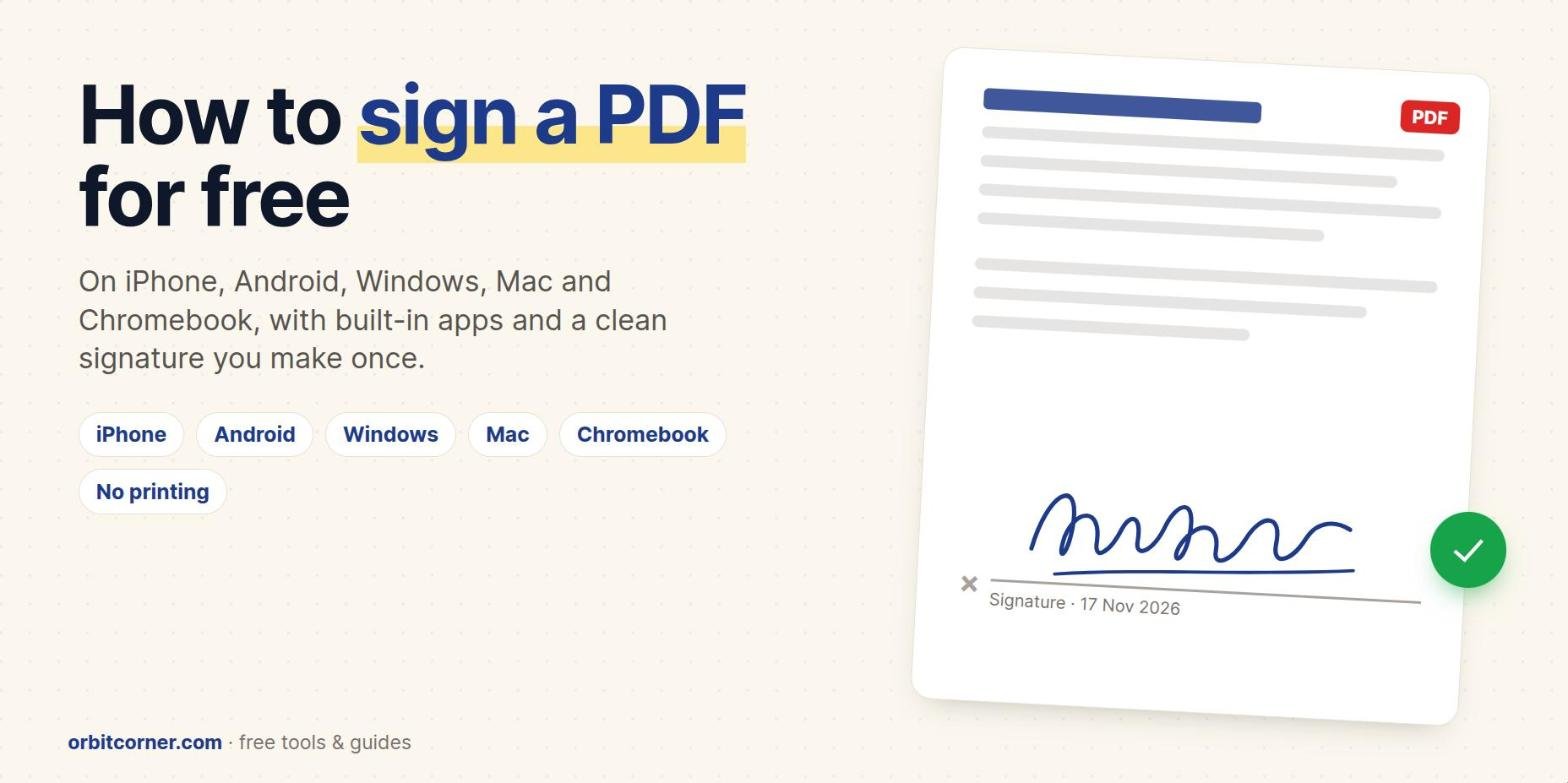
Short answer: you don’t need to print anything. On an iPhone or iPad, open the PDF in Files and use Markup › + › Add Signature. On a Mac, use Preview. On Windows and Android, use the free Adobe Acrobat Reader (Fill & Sign). On a Chromebook, the built-in Gallery app can sign PDFs. All of these are free. Step-by-step instructions for each one are below.
Someone sends you a lease, a job offer, a school permission slip or a client agreement, and the email ends with “please sign and return.” The old way was print, sign, scan and email back. That takes ten minutes and a printer most people no longer own.
Every phone and computer can now put a real-looking signature on a PDF in about a minute, with tools that are already installed or free in the official app store. This guide shows the exact steps on every device, how to make your signature look clean and natural, and what the law actually says about signing this way.
Before you start: make one clean signature
Most people’s first electronic signature looks shaky, because a trackpad or a fingertip is harder to control than a pen. You have two ways to fix that:
- Draw it slowly in the signing app. Every method below lets you draw a signature, and most save it, so you only need to get it right once.
- Make a signature image first. Our free Signature Generator lets you draw with smooth ink, type your name in a handwriting font, or photograph your real signature on paper. It downloads a trimmed PNG with a transparent background, so it sits on the signature line with no white box. Nothing is uploaded; it all happens in your browser.
A signature image is useful in Adobe Acrobat Reader (Windows, Mac and Android), and in Word and Google Docs. Apple’s Markup and the Chromebook Gallery app ask you to draw instead, which is fine: draw slowly and press a little harder than feels natural.
Which free tool to use on each device

| Device | Free tool | Can use a signature image? | Saves your signature? |
|---|---|---|---|
| iPhone and iPad | Files app (Markup) or Preview | No, you draw it | Yes |
| Mac | Preview | Via the camera (sign on paper) | Yes, and syncs to your other Apple devices |
| Windows | Adobe Acrobat Reader | Yes (Image option) | Yes |
| Android | Adobe Acrobat Reader app | Yes (image icon) | Yes |
| Chromebook | Gallery app | No, you draw it | Yes |
| Any browser | Adobe Acrobat online | Yes | Needs a free Adobe account to download |
How to sign a PDF on iPhone and iPad
You don’t need to install anything. The Files app has a built-in tool called Markup that can add a signature to any PDF.
- Save the PDF to the Files app. From Mail, tap the attachment, then the Share button, then Save to Files.
- Open the PDF in Files and tap the Markup button (a pen tip in a circle).
- Tap + and choose Add Signature.
- Sign with your finger or an Apple Pencil, then tap Done. Turning the phone sideways gives you more room.
- Drag the signature onto the line and pull a corner to resize it.
- Tap Done. Then share the signed PDF back from the Share button.
The next time you sign, your saved signature appears in the Add Signature menu, so it is one tap. On iOS 26 and iPadOS 26 there is also a separate Preview app that can fill in PDF form fields and add the same signature.
Want to use a signature image on your iPhone? Markup only lets you draw. Install the free Adobe Acrobat Reader app and follow the Android steps below; the iPhone app works the same way and has an image option.
How to sign a PDF on a Mac with Preview
Preview comes with every Mac and has the best built-in signature tool of any computer, because it can capture your real handwriting three different ways.
- Open the PDF in Preview (double-click it, or right-click › Open With › Preview).
- Click the Show Markup Toolbar button (the pen tip), then click the Sign button.
- Click Create Signature and choose one of three ways:
• Trackpad: click the prompt, sign with your finger on the trackpad, press any key, then click Done.
• Camera: sign your name on white paper and hold it up to the camera. Preview captures it when it is level.
• iPhone or iPad: choose your device and sign on its screen. - Click your new signature to place it, then drag it onto the line and resize it.
- Choose File › Save, or File › Export as PDF to keep the original untouched.
The camera method gives the most realistic result, because it is your actual pen signature. Apple notes that a Force Touch trackpad lets you press harder for a darker, thicker line. Your signatures also appear on your other Apple devices signed in to the same iCloud account.
How to sign a PDF on Windows (free)
Windows doesn’t have a built-in signing tool like Preview, so the best free option is Adobe Acrobat Reader. It is free from Adobe’s website and the Microsoft Store. Avoid look-alike “free PDF signer” downloads from ad links.
- Open the PDF in Acrobat Reader.
- Choose Fill & Sign. In newer versions it is under All tools; the exact labels change a little between updates.
- Select Sign (or Sign yourself), then Add signature.
- Choose Type, Draw or Image. To use the PNG from our Signature Generator, choose Image and pick the file.
- Click Apply, click where the signature should go, and resize it.
- Save the file. Adobe notes that once you save, the signature becomes part of the PDF.
Quick option without installing anything: Microsoft Edge opens PDFs and has a Draw tool, so you can scribble a signature with the mouse or a pen and save. It doesn’t store a signature for reuse or place an image, so it is best for a one-off.
How to sign a PDF on Android
Google Drive can fill in some PDF forms but has no signature tool, so use the free Adobe Acrobat Reader app from Google Play.
- Open the PDF in the Acrobat Reader app (from Files, Gmail or Drive, choose Open with › Adobe Acrobat).
- Tap the edit button and choose Fill & Sign.
- Tap the signature (pen nib) icon and choose Create signature. Draw it, or tap the image icon to use a signature picture from your phone.
- Tap where the signature goes, resize it, and tap the check mark.
- Share or save the signed PDF.
Samsung phones also have signing tools built into Samsung Notes and the S Pen apps, but Acrobat works the same on every Android phone, which makes it the safest recommendation.
How to sign a PDF on a Chromebook
ChromeOS has a signing tool built into the Gallery app, which is where PDFs open by default.
- Open the PDF from the Files app. It opens in Gallery.
- Choose the signature tool at the top of the window.
- Draw your signature with the touchpad, a touchscreen or a stylus.
- Select Place signature, then drag and resize it.
- Save the PDF. Gallery keeps your signature so you can reuse it on other PDFs.
Good to know: drawing or placing something over text in a PDF does not remove that text. If you need to hide private information (redact), use a proper redaction tool rather than drawing a black box over it.
How to sign a PDF online in your browser
If you are on a shared or work computer and can’t install anything, Adobe’s free online Fill & Sign tool runs in the browser. You can sign without paying, but you need a free Adobe account to download the result.
Be careful with other “sign PDF online” sites. Signing means uploading your document, and contracts, IDs and bank forms are exactly the files you don’t want sitting on an unknown server. Prefer the built-in tools above, which keep the file on your device.
Is a signature on a PDF legally valid?
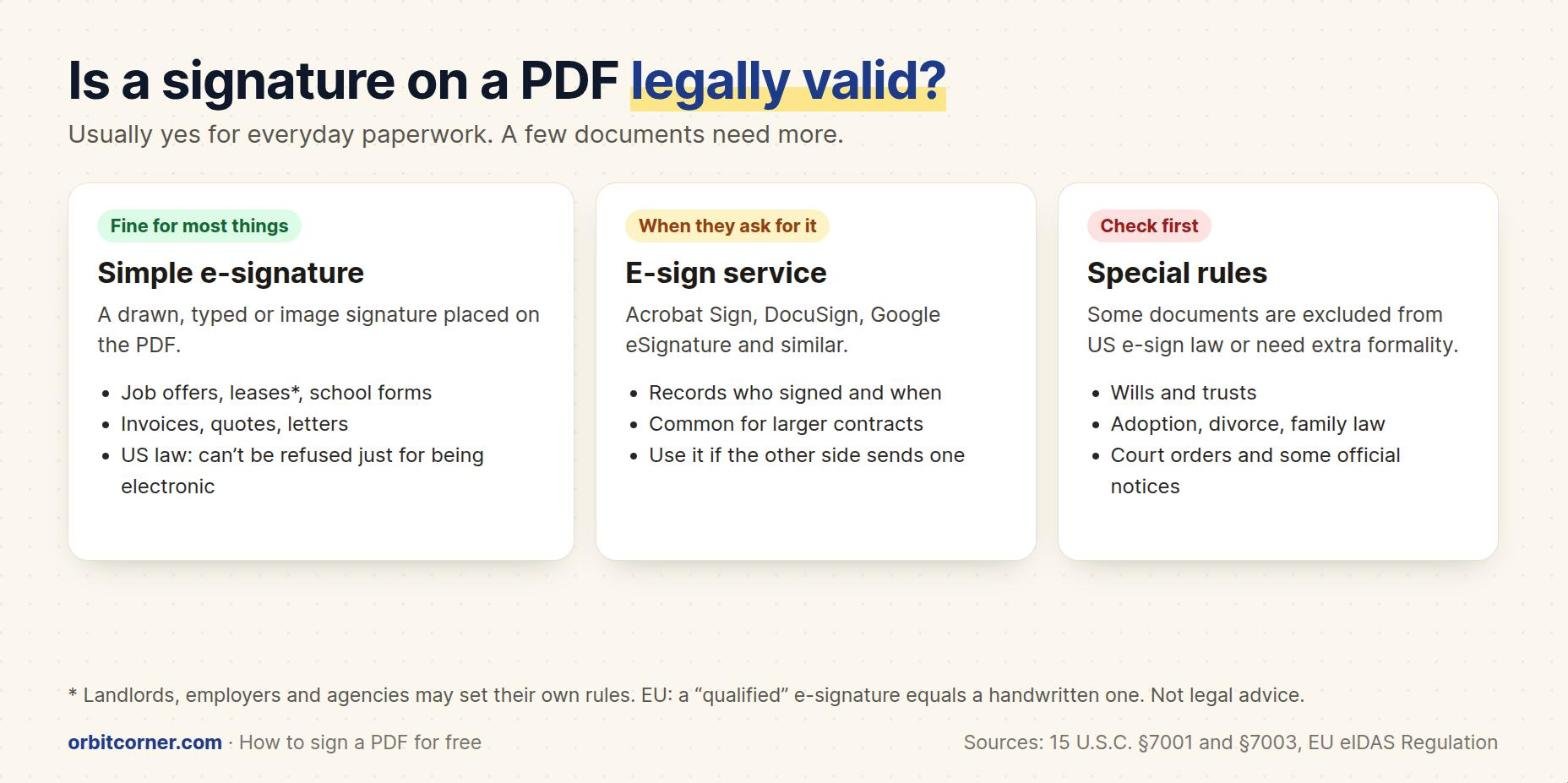
For most everyday documents, yes. In the United States, the federal ESIGN Act says a signature or contract can’t be denied legal effect, validity or enforceability solely because it is in electronic form. Almost every state has a matching law (the UETA).
The same law lists exceptions. Wills, codicils and testamentary trusts, adoption, divorce and other family-law matters, most of the Uniform Commercial Code, and court orders and certain official notices are not covered, so they may need a wet signature, a witness or a notary.
In the European Union, the eIDAS Regulation also says an electronic signature can’t be refused as evidence just because it is electronic. It treats a qualified electronic signature (made with a certified device and certificate) as equal to a handwritten one.
- Fine for most things: job offers, rental applications, school forms, invoices, quotes and everyday business letters, unless the other side asks for something else.
- Use an e-sign service when asked: if a company sends you a DocuSign, Acrobat Sign or Google eSignature request, sign through that link. It records who signed and when.
- Check first: wills, property deeds, family-law papers, court filings and anything that needs a witness or a notary.
This is general information, not legal advice. Rules differ by country and state, and a landlord, employer or agency can set its own requirements.
Tips for a signature that looks real
- Make it the right size. A real signature is about as tall as two lines of text. Huge signatures look pasted on.
- Use dark blue or black. Blue ink makes it obvious the page was signed rather than photocopied.
- Use a transparent PNG. A JPG has a white background that covers the signature line. Our Signature Generator downloads a transparent PNG by default.
- Sign in landscape. On a phone, turning sideways gives you a wider space and a smoother signature.
- Keep the unsigned original. Save the signed copy with a new name, such as “lease-signed.pdf”.
- Shrink big files. If an upload form rejects your signed PDF or image as too large, compress the image first with Compress Image to KB.
Common problems and fixes
| Problem | Fix |
|---|---|
| The signature has a white box around it | Your image is a JPG or has a white background. Use a transparent PNG. |
| The signature looks shaky | Draw slowly, or sign on paper and use the Mac camera option or a photo in the Signature Generator. |
| “Add Signature” is missing on iPhone | Open the PDF from the Files app, not inside an app’s own preview, then tap Markup. |
| I can’t edit the PDF after signing | Acrobat flattens the signature into the page when you save. Edit the unsigned original and sign again. |
| The PDF is “secured” and won’t let me sign | The sender locked it. Ask them for an unlocked copy or an e-sign request link. |
Make your signature once, use it everywhere
Draw it, type it in a handwriting font or photograph it on paper. Download a transparent PNG in seconds. Free, no sign-up, and nothing leaves your device.
Signing a Word file or a Google Doc instead of a PDF? See our guide to inserting a signature in Word and Google Docs.
Frequently asked questions
How can I sign a PDF without printing it?
Use the free tool on your device: Markup on iPhone and iPad, Preview on a Mac, Adobe Acrobat Reader on Windows and Android, or the Gallery app on a Chromebook. Each lets you draw or place a signature and save the PDF.
Is there a free way to sign a PDF?
Yes. Every method in this guide is free. Apple Markup, Preview and the Chromebook Gallery app are built in, and Adobe Acrobat Reader’s Fill & Sign feature is free on Windows, Mac, iPhone and Android.
Is a signature I pasted onto a PDF legally binding?
In the US and the EU, a signature can’t be rejected just because it is electronic, so a simple e-signature works for most everyday agreements. Wills, family-law papers and court documents have special rules. This isn’t legal advice; check with the other party or a lawyer for important contracts.
What is the difference between an electronic signature and a digital signature?
An electronic signature is any signature in electronic form, such as a drawn or typed signature. A digital signature uses a certificate and encryption to prove who signed and that the file hasn’t changed since. Some contracts and government forms require a digital signature.
How do I sign a PDF on my phone?
On iPhone, open the PDF in Files and tap Markup › + › Add Signature. On Android, open it in the free Adobe Acrobat Reader app and use Fill & Sign.
Can I use a picture of my signature?
Yes, in Adobe Acrobat Reader (Image option), Word and Google Docs. Use a PNG with a transparent background so it doesn’t cover the signature line. Our Signature Generator can turn a photo of your paper signature into one.
Sources
- Apple Support: Fill out forms and add signatures on iPhone
- Apple Support: Fill out and sign PDF forms in Preview on Mac
- Adobe Help: Sign PDF documents with Acrobat and Reader
- Chromebook Help: Annotate and sign PDFs in the Gallery app
- 15 U.S. Code §7001 (ESIGN Act), Cornell LII
- 15 U.S. Code §7003, exceptions, Cornell LII
- EU Regulation 910/2014 (eIDAS), EUR-Lex