How to Convert a Word Document to a Google Form (Free, No Copy-Paste)
You have a questionnaire in Word, maybe 30 or 40 questions with options, sections and an answer key. Now you need it as a Google Form. Retyping it all is slow, and copy-pasting each question and option one by one is worse.
Here is how to convert a Word document into a Google Form without the copy-paste, plus how to format your document so it converts perfectly the first time.
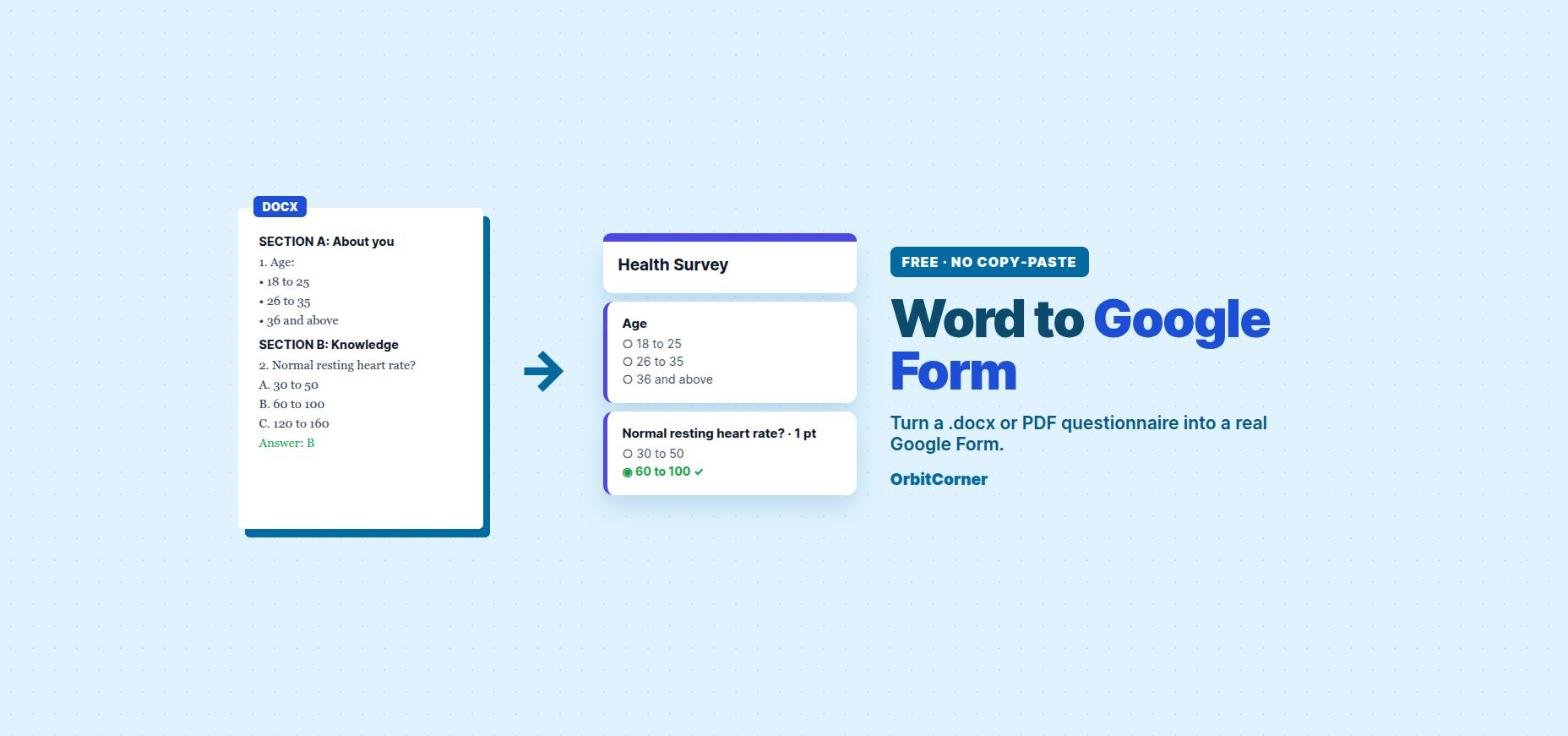
Short answer: Google Forms has no “import from Word” button. The fastest free way is to upload your .docx (or a text-based PDF) to the Google Form Generator, check the detected questions, and run the script it gives you. It creates the form, with sections, options and answer keys, plus a linked Google Sheet in your own Google account.
Can Google Forms import a Word document?
Not directly. Inside Google Forms you can only import questions from another Google Form. There is no option to open a .docx or PDF and turn its contents into questions. That leaves you with three options:
- Copy and paste by hand. Free, but slow: every question, then every option, then the settings.
- Gemini in Google Forms. “Help me create a form” can draft a form from a file in your Drive, but it needs an eligible paid Google plan and cannot yet create multi-section forms.
- A converter that reads your file. The free Google Form Generator keeps your exact wording, supports sections and quiz answer keys, and does not upload your file anywhere.
How to convert Word to Google Forms (step by step)
1. Upload your file
Open the generator and click Upload a file, or drop the file on the text box. It accepts .docx files, PDFs that contain real text, and .txt files. The file is read inside your browser, so your questionnaire is never sent to a server.

Got a scanned PDF or a photo of a printed questionnaire? Those are images with no text to read. Copy the text out first with our free Image to Text tool, then paste it in.
2. Check the questions
The text of your file appears in the box, and the tool turns your sections, numbered questions, options and answer lines into a live preview of the Google Form. To fix a question, edit the text and the preview updates. The preview flags anything the tool is unsure about and lists any line it could not place, so nothing is silently dropped.
3. Create the form in your Google account
- Open the free Google Form Generator.
- Paste your questions, upload a Word, PDF or text file, or describe the form in a sentence. The preview builds the form as you type.
- Check the preview. To change something, edit your text and the preview updates. Open Form settings to change the title, quiz mode, email collection or the message people see after they submit. The preview flags anything the tool is unsure about.
- Click Create my Google Form. The tool copies a short script and opens a new Google Apps Script project in your own Google account.
- In the Google tab, click in the code and press Ctrl+A, then Ctrl+V (⌘ on a Mac) to paste over the sample. Then click Run.
- Google asks you to allow the script once, because it is a new script in your account. Click Review permissions, choose your account, then Advanced, Go to Untitled project (unsafe) and Allow.
- Open the Execution log to find your three links: the form to share, the editor link and the responses Sheet. They are also saved in a Links tab in the new Sheet.

Convert your Word questionnaire now
Upload a .docx or PDF, check the questions, and get a real Google Form with a linked Sheet. Free and private.
Format your document so it converts perfectly
Most questionnaires convert well as they are, but these simple patterns give the best results:

| Write this in Word | You get in Google Forms |
|---|---|
SECTION A: About you | A new section (page) |
1. Age: followed by options | A multiple choice question |
A. 18 to 25, bullets, or a) b) | Answer options |
Gender: Male / Female / Prefer not to say | Options from a single line |
(Select all that apply) | Checkboxes |
On a scale of 1 to 5... | A 1 to 5 linear scale |
| Statements with Always / Sometimes / Never | Multiple choice per statement, or a grid |
Answer: B after a question, or an answer key at the end | The quiz answer key (hidden from respondents) |
A question with no options, like Full name | A short answer |
Comments, Explain, Describe | A paragraph box |
Research questionnaires: Likert scales, scoring and answer keys
Research and thesis questionnaires usually have three parts: demographics, a knowledge section with correct answers, and a practice or attitude section with a scale like Always / Sometimes / Never or Strongly agree to Strongly disagree. The generator handles all three:
- Demographics become multiple choice or short answer questions.
- Knowledge questions with an answer key turn on quiz mode, with points per question. The answers are never shown to participants.
- Scale statements become multiple choice questions, or one grid if you prefer.
- Scoring rules such as “Always = 2, Sometimes = 1, Never = 0” are kept and written into a Scoring tab in your responses Sheet, so you can score answers later.
Your original wording is kept exactly, which matters when your questionnaire has been validated or approved.
Common problems and quick fixes
- A question has no options: check that options start on new lines with A., B., bullets or similar.
- Two questions merged: make sure every question starts with its own number.
- An answer key appears as questions: put it under a heading like ANSWER KEY, or write
Answer: Bdirectly under each question. - Tables from Word look messy: paste the text instead of uploading, or use the “Always / Sometimes / Never” pattern on each statement.
- Nothing is found in a PDF: it is probably scanned. Use Image to Text first.
FAQ
Can I convert a Google Doc to a Google Form?
Yes. Copy the text from your Google Doc and paste it into the generator, or download it as .docx and upload it.
Is my document uploaded?
No. The file is read in your browser, and the form is created by a script you run in your own Google account.
Does it work with PDF files?
Yes, if the PDF contains real text (you can select the words). Scanned PDFs are images, so copy the text out first with an OCR tool.
Does it keep sections?
Yes. Headings like SECTION A or PART 2 become separate sections in the Google Form.
Can it convert a quiz with answers?
Yes. “Answer: B” lines or an answer key at the end become the quiz answer key. See how to make a quiz in Google Forms.