How to Take a Screenshot on Any Device (2026 Guide)
Short answer: on Windows, press Windows + Shift + S and drag over what you want. On a Mac, press Shift + Command + 4. On an iPhone, press the side button and volume up together; on an Android phone, press Power and volume down. On a Chromebook, press Shift + Ctrl + Show windows. The full steps, the hidden options and where each screenshot is saved are below.
A screenshot is the fastest way to keep a receipt, show someone an error message, save a recipe or prove what a page said before it changed. Every computer and phone can take one without extra apps, but the shortcut is different on each device, and a few of them changed recently.
Windows 11 now uses the Print Screen key to open its snipping bar, iOS 26 opens screenshots full screen by default, and Android, Samsung and every major browser can now capture a long page in one image. This guide covers all of it, device by device, with the exact keys and buttons to press.
Screenshot shortcuts at a glance
| Device | Shortcut | Saved to |
|---|---|---|
| Windows 11 and 10 | Windows + Shift + S (choose an area) | Clipboard and Pictures › Screenshots |
| Mac | Shift + Command + 3 (whole screen) or Shift + Command + 4 (area) | Desktop |
| iPhone with Face ID | Side button + volume up | Photos |
| iPhone with Home button | Side (or top) button + Home | Photos |
| iPad | Top button + a volume button (or Home) | Photos |
| Android | Power + volume down | Photos › Screenshots |
| Chromebook | Shift + Ctrl + Show windows or the Screenshot key | Downloads |
| Linux (GNOME, Ubuntu) | Pictures › Screenshots |
How to take a screenshot on Windows 11 and 10
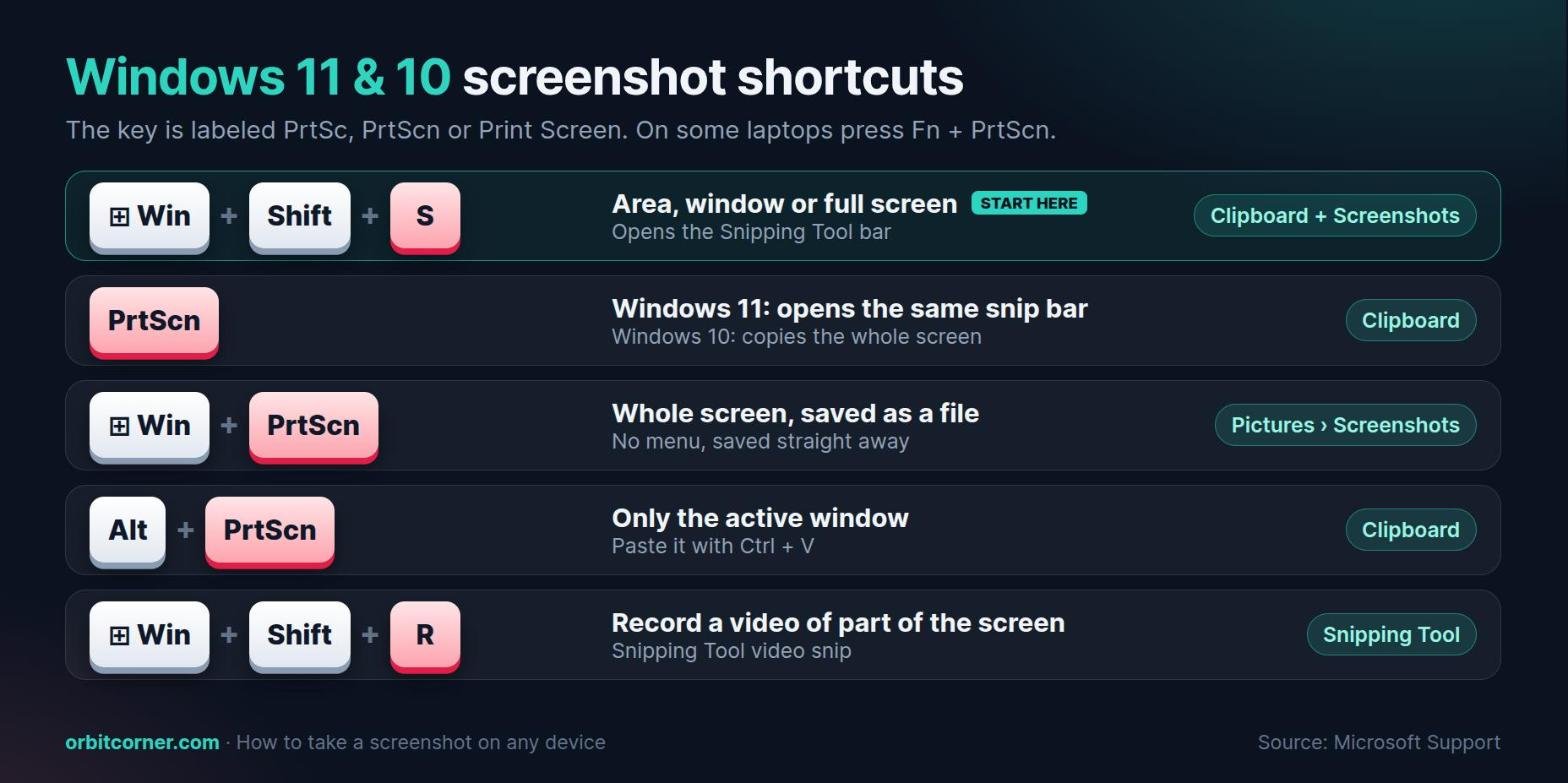
Windows has five screenshot shortcuts. You only need the first one for most jobs, because it lets you choose exactly what to capture.
The best way: Windows + Shift + S
- Press Windows + Shift + S. The screen dims and a small bar appears at the top.
- Pick a mode on the bar: Rectangle (drag a box), Window (click a window), Full screen or Freeform (draw any shape).
- Make your selection. The screenshot is copied to the clipboard, so you can paste it straight into an email, chat or document with Ctrl + V.
- Click the notification that pops up to crop, draw on it or save it as a file. The Snipping Tool also saves your snips to the Screenshots folder automatically.
The Print Screen key (PrtScn)
On current versions of Windows 11, pressing PrtScn opens the same snipping bar as Windows + Shift + S. On Windows 10, and on Windows 11 if you switch the setting off, it copies the whole screen to the clipboard instead. Windows saves no file until you paste it somewhere.
To choose which one you get, open Settings, search for Print screen and switch Use the Print screen key to open screen capture on or off. Keyboards label the key PrtSc, PrtScn or Print Screen, and on many laptops you have to hold Fn as well.
Save the whole screen as a file: Windows + PrtScn
Press Windows + PrtScn to capture everything on screen and save it straight away, with no menu. You will find the file in Pictures › Screenshots. This is the quickest way to take several screenshots in a row.
Capture one window: Alt + PrtScn
Click the window you want, then press Alt + PrtScn. Windows copies only that window to the clipboard, without your taskbar or other apps. Paste it with Ctrl + V.
Take a timed screenshot
Menus and tooltips disappear when you press a key, so use a delay. Open the Snipping Tool app, choose a delay of 1 to 5 seconds (or press Alt + D), pick a mode and click New. Open the menu while the countdown runs; the screen turns gray when it is ready to capture.
Record the screen: Windows + Shift + R
Press Windows + Shift + R to record a video of any part of the screen with the Snipping Tool. It is useful for showing a bug or a few steps that a still image cannot explain.
Tip: the Snipping Tool can also read text in a screenshot. Click Text actions to copy the words, or use Quick redact to hide email addresses and phone numbers before you share it. For more ways to do this on any device, see how to copy text from a screenshot.
How to take a screenshot on a Mac
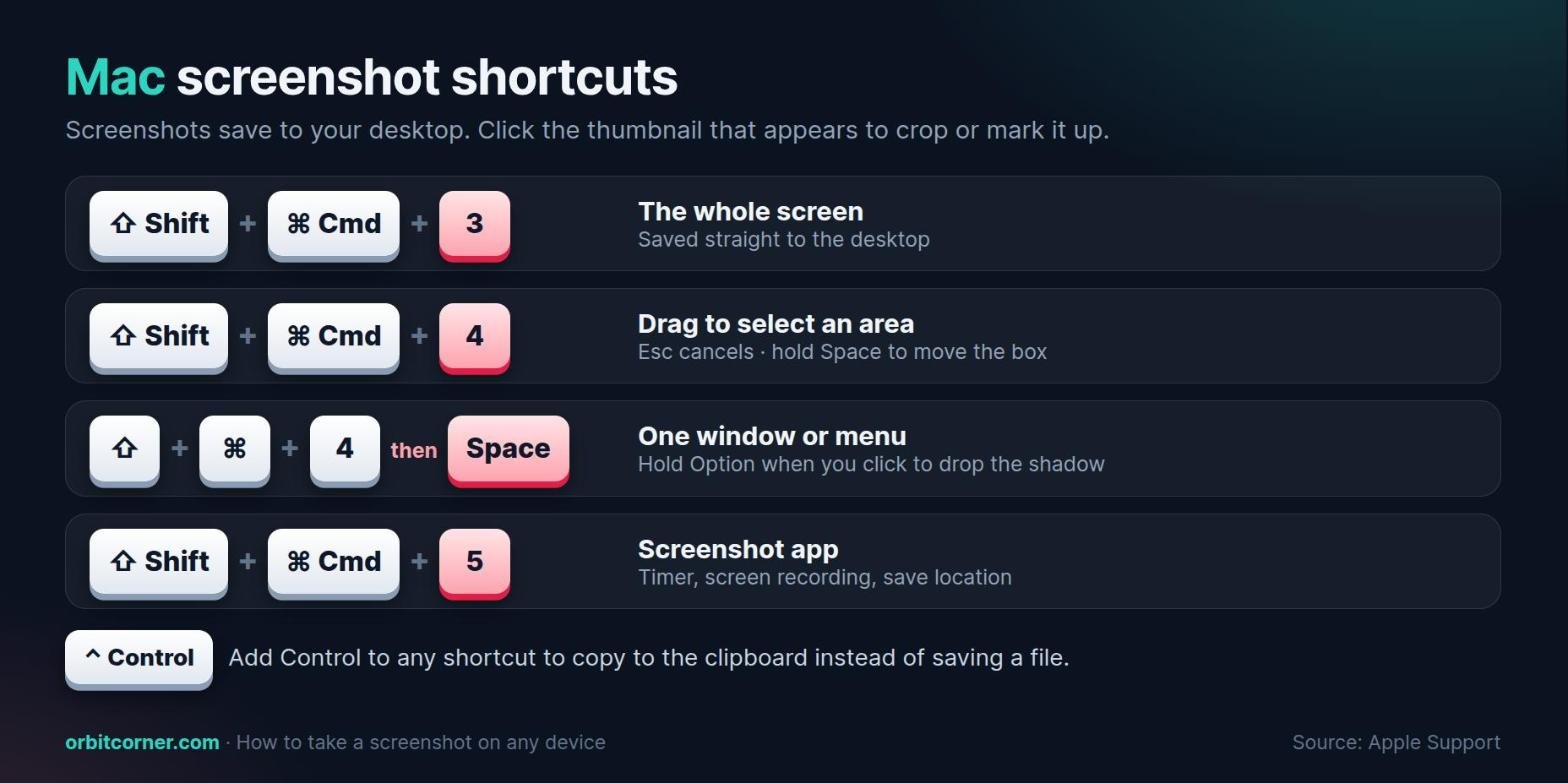
Every Mac screenshot shortcut starts with Shift + Command. After you take one, a small thumbnail appears in the corner of the screen for a few seconds. Click it to crop or mark up the image, or ignore it and the file saves to your desktop.
- Whole screen: press Shift + Command + 3.
- Part of the screen: press Shift + Command + 4, then drag to select an area. Press Esc to cancel, or hold the Space bar while dragging to move the box.
- One window or menu: press Shift + Command + 4, then press the Space bar and click the window. Hold Option as you click to leave out the window’s shadow.
- Screenshot app: press Shift + Command + 5 for on-screen buttons, a timer, screen recording and the Options menu, where you can change the save location and show or hide the pointer.
To copy a screenshot to the clipboard instead of saving a file, add Control to any shortcut, for example Control + Shift + Command + 4. On supported Macs with macOS Tahoe 26 or later, the Screenshot app also lets you choose SDR (PNG, the most compatible) or HDR format.
Some apps, such as the Apple TV app, do not allow screenshots of their windows, so you may get a blank or black image there.
How to take a screenshot on an iPhone
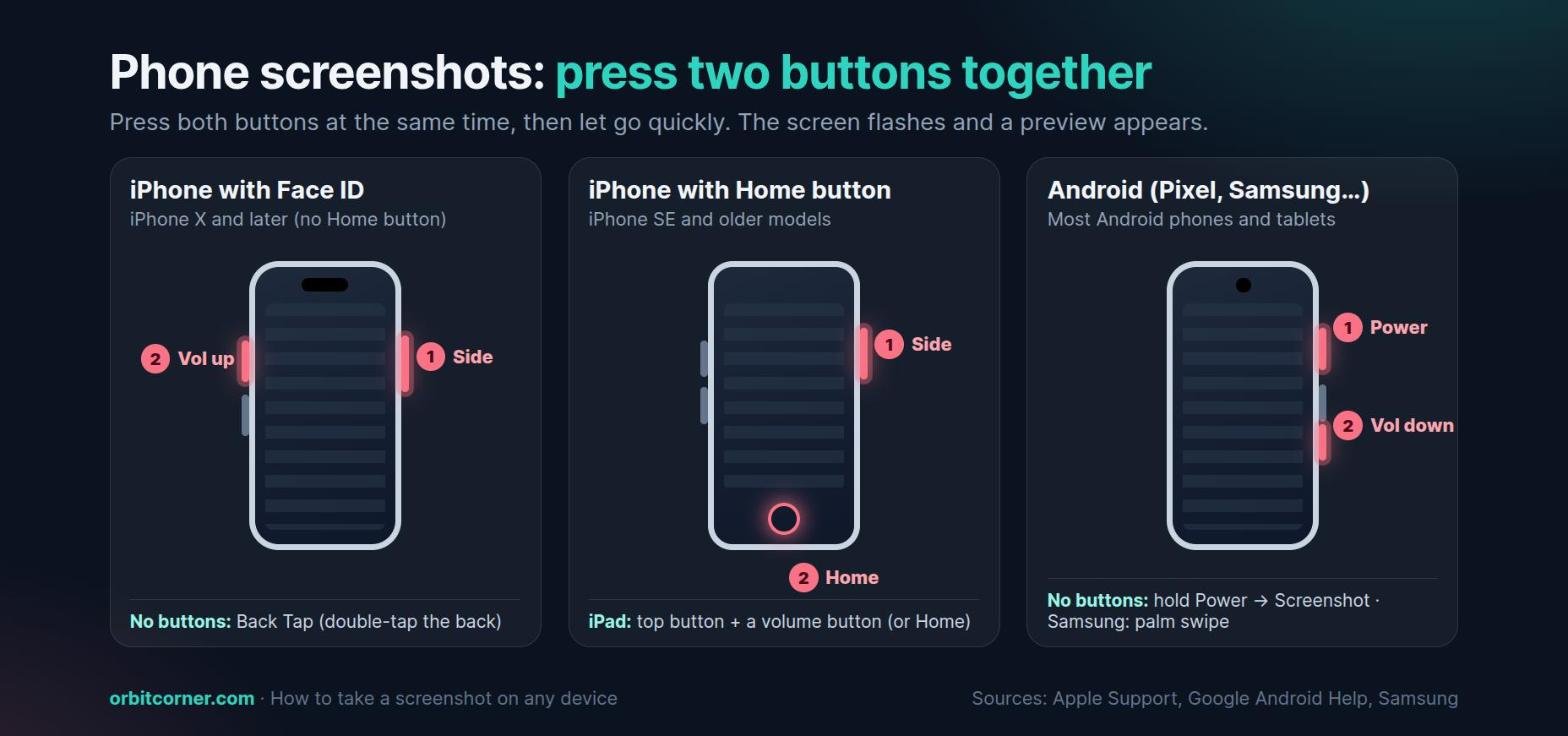
iPhone with Face ID (no Home button)
- Press the side button and the volume up button at the same time.
- Let go of both buttons quickly. The screen flashes and the screenshot appears.
iPhone with a Home button (including iPhone SE)
Press the Home button and the side button (or the top button on older models) at the same time, then let go quickly.
What happens next in iOS 26 and later
Since iOS 26, the screenshot opens full screen with quick tools: draw on it with Markup, crop it, share it or tap the save button to choose where it goes. If you prefer the old small thumbnail in the lower-left corner, open Settings › General › Screen Capture and turn off Full-Screen Previews. On iOS 18 and earlier, the thumbnail appears by default and disappears after a few seconds.
Take a screenshot without the buttons
- Back Tap: go to Settings › Accessibility › Touch › Back Tap, choose Double Tap or Triple Tap, then choose Screenshot. Now tap the back of the phone to capture the screen. It works on iPhone 8 and later.
- AssistiveTouch adds an on-screen button that can take screenshots, which helps if a physical button is broken.
- Siri: say “Take a screenshot.”
Your screenshots are in the Photos app: open Collections › Media Types › Screenshots.
How to take a screenshot on an iPad
- iPad without a Home button: quickly press and release the top button and a volume button at the same time. On some models the volume buttons are on the side, on others on the top.
- iPad with a Home button: press the Home button and the top button together.
- With an Apple Pencil: swipe up diagonally from the lower-left or lower-right corner of the screen.
Tap the preview to crop, mark up or capture a full page, then tap Done. iPad screenshots save to Photos in the same Screenshots album as on iPhone.
How to take a screenshot on Android
On almost every Android phone and tablet, including Google Pixel, Samsung Galaxy, Motorola, OnePlus and Xiaomi, the shortcut is the same:
- Press Power and volume down at the same time.
- Let go when the screen flashes. A preview appears in the corner; tap it to edit or share.
- If nothing happens, hold the Power button for a few seconds and tap Screenshot in the menu.
If neither works, your phone maker may use a different method, so check its support site. To find your screenshots, open the Photos app and tap Collections › On this device › Screenshots. On older phones without Google Photos, look in the Gallery app.
Samsung Galaxy: palm swipe
Samsung adds a gesture: swipe the edge of your hand across the screen. Turn it on in Settings › Advanced features › Motions and gestures › Palm swipe to capture. Keep your hand in contact with the screen and swipe from one side to the other in one smooth movement.
Record the screen on Android
Swipe down twice from the top of the screen and tap Screen record. If you cannot see it, tap Edit and drag it into Quick Settings. Choose whether to record sound and show your touches, tap Start, and stop it from the notification.
How to take a screenshot on a Chromebook
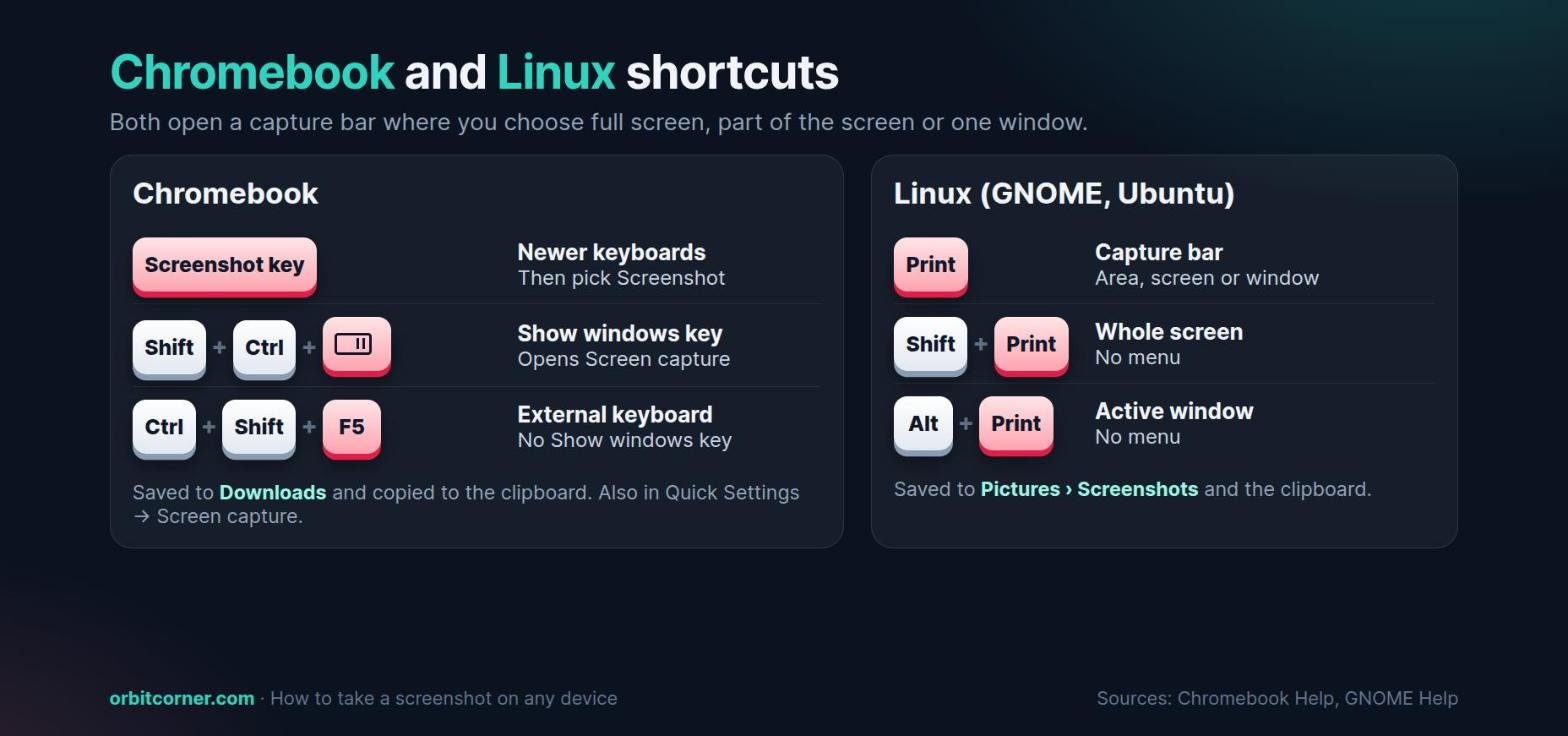
- Newer keyboards: press the Screenshot key, then choose Screenshot in the menu at the bottom.
- Keyboards without a Screenshot key: press Shift + Ctrl + Show windows. The Show windows key looks like a rectangle with two lines on its right, usually in the top row.
- External keyboard: press Ctrl + Shift + F5.
- From the menu: tap the time at the bottom right and choose Screen capture.
In the capture bar, pick full screen, part of the screen or a window. For a partial capture, you can use the keyboard: press the Space bar to switch sections, then Tab and the arrow keys to resize. Your Chromebook copies the screenshot to the clipboard and saves it to your Downloads folder. To change the folder, open the capture bar, choose Settings and then Select folder.
The same bar records video: choose Screen record, pick an area and click to start. Partial recordings can be saved as a video or a GIF.
How to take a screenshot on Linux (Ubuntu and GNOME)
- Print opens the screenshot bar, where you choose an area, the whole screen or a window.
- Shift + Print captures the whole screen straight away.
- Alt + Print captures the active window straight away.
- Shift + Ctrl + Alt + R starts a screen recording.
Screenshots go to Pictures › Screenshots in your home folder and are copied to the clipboard. Other Linux desktops, such as KDE Plasma, come with their own screenshot apps.
How to take a scrolling screenshot of a whole page
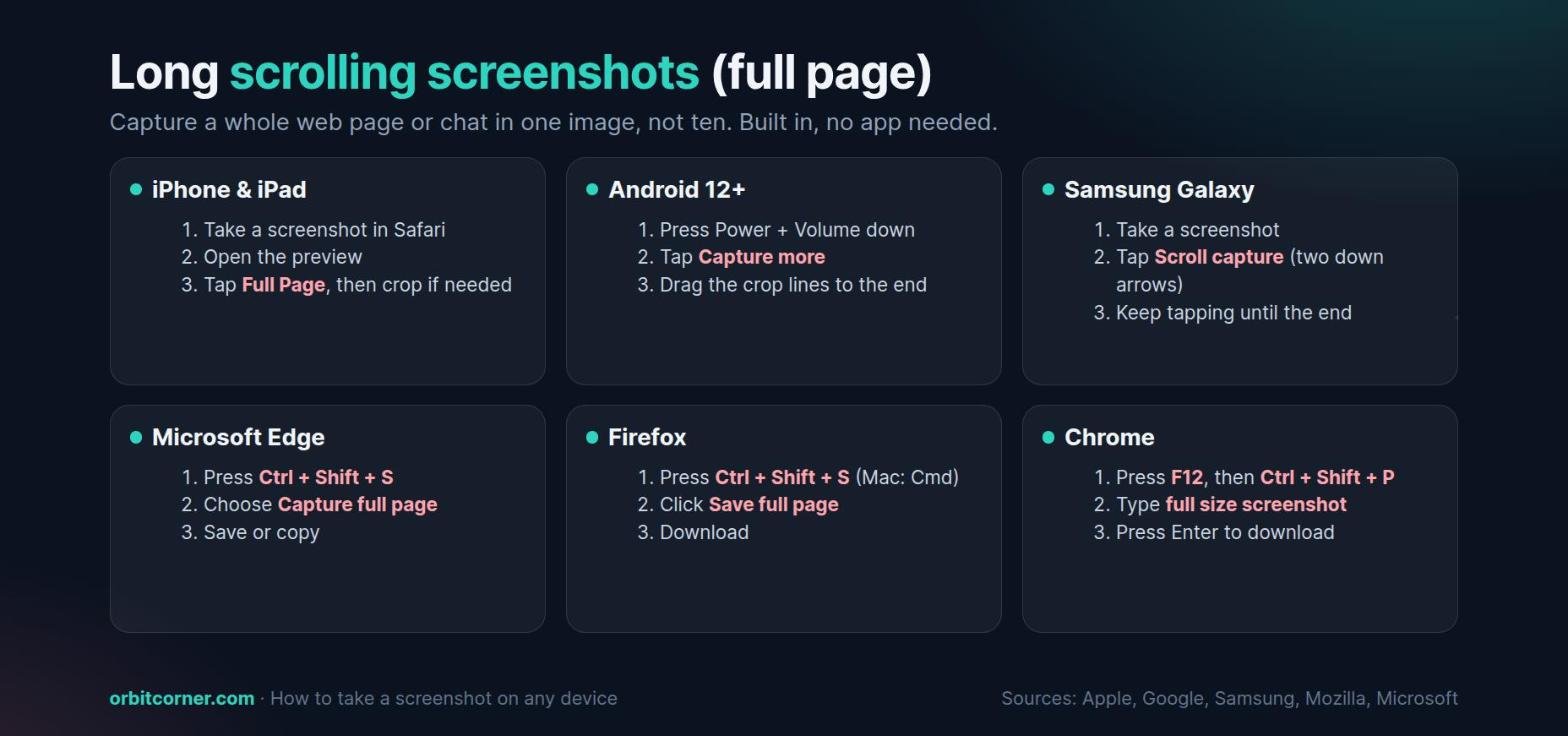
A normal screenshot only captures what fits on the screen. For a long article, a receipt or a chat, use a scrolling (full-page) screenshot instead:
| Where | How to capture the full page |
|---|---|
| iPhone and iPad | Take a screenshot in Safari, open the preview and tap Full Page. Crop it if you only need part. |
| Android 12 and later | Press Power + volume down, tap Capture more, then drag the crop lines to where you want it to end. |
| Samsung Galaxy | Take a screenshot and tap the Scroll capture icon (two down arrows). Keep tapping to add more. |
| Microsoft Edge | Press Ctrl + Shift + S and choose Capture full page. |
| Firefox | Press Ctrl + Shift + S (Command + Shift + S on a Mac) and click Save full page. |
| Google Chrome | Open DevTools with F12, press Ctrl + Shift + P (Command + Shift + P on a Mac), type full size screenshot and press Enter. |
Pages that keep loading as you scroll, such as social media feeds, may stop part-way. Scroll down once first so the content loads, then capture.
Where are my screenshots saved?
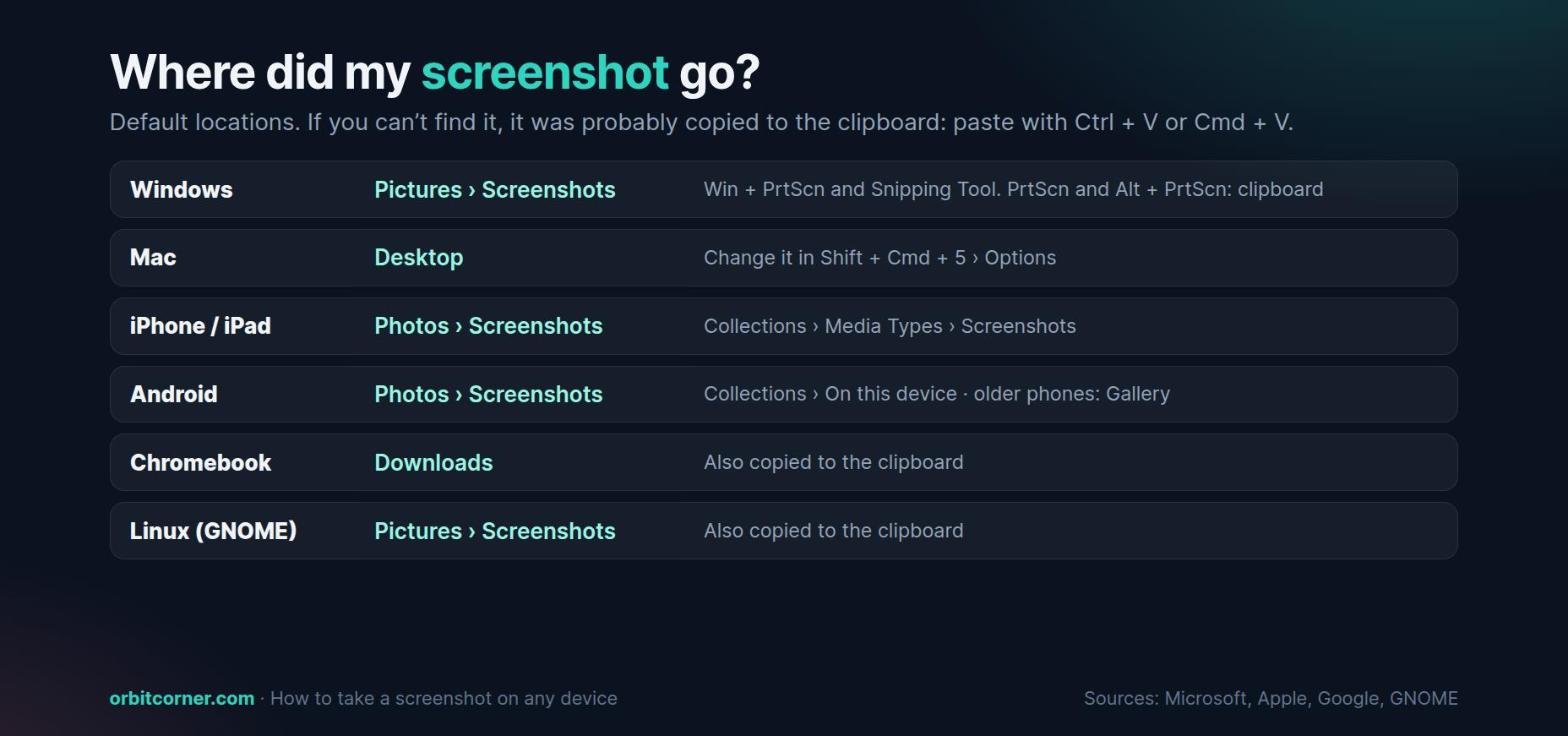
| Device | Default location | Good to know |
|---|---|---|
| Windows | Pictures › Screenshots | Only for Windows + PrtScn and the Snipping Tool. PrtScn and Alt + PrtScn copy to the clipboard. |
| Mac | Desktop | Change it in Shift + Command + 5 › Options. |
| iPhone and iPad | Photos › Collections › Media Types › Screenshots | In iOS 26 you can choose where to save from the preview. |
| Android | Photos › Collections › On this device › Screenshots | Older phones: Gallery app. |
| Chromebook | Downloads | Also copied to the clipboard. |
| Linux (GNOME) | Pictures › Screenshots | Also copied to the clipboard. |
Can’t find it? Open a chat, email or document and press Ctrl + V (Command + V on a Mac). If an image appears, the screenshot was on the clipboard and was never saved as a file.
Screenshot not working? Quick fixes
- Print Screen does nothing on Windows. Check the Print screen setting (search Settings for “Print screen”), hold Fn on a laptop, or use Windows + Shift + S, which always works.
- “I took it but there is no file.” Some shortcuts only copy to the clipboard. Paste it, or use Windows + PrtScn on Windows or a shortcut without Control on a Mac.
- Your phone locks or opens the power menu. You pressed the buttons one after the other or held them too long. Press both at exactly the same moment and let go straight away.
- The screenshot is black or blank. Some apps block screenshots on purpose, such as streaming video apps and some banking apps. That is a protection, not a fault.
- The Android shortcut is ignored. Hold Power and tap Screenshot instead, or check your phone maker’s support page for its method.
- A work or school device will not take screenshots. Your organization can switch features off, including the Edge screenshot tool. Ask your IT team.
Before you share a screenshot
Screenshots often show more than you meant to share. Before you send one, take ten seconds to check the edges and the notification bar.
- Crop out tabs, bookmarks, other chats and your battery or notification icons.
- Cover private details with a solid box from the markup tools, not a light scribble. On Windows, the Snipping Tool’s Quick redact hides email addresses and phone numbers for you.
- Never share screenshots that show passwords, one-time codes, full card numbers or ID documents.
What to do with a screenshot next
- Copy the text out of it: drop it into our free Image to Text converter to turn the words into editable text, in your browser.
- Make it small enough to upload: forms and job portals often limit files to 100 KB or less. Compress Image to KB shrinks it to an exact size.
- Share a shorter version: crop it first. A tight crop is easier to read on a phone than a full-screen capture.
Need the text from your screenshot?
Paste or upload a screenshot and copy the text in seconds. Free, no sign-up, and your image stays in your browser.
Frequently asked questions
How do I take a screenshot on a laptop?
On a Windows laptop, press Windows + Shift + S. It works even if your keyboard has no Print Screen key. On a MacBook, press Shift + Command + 4. On a Chromebook, press Shift + Ctrl + Show windows.
Which key is Print Screen?
It is usually in the top row, near F12, and labeled PrtSc, PrtScn, PrntScrn or Print Screen. On some laptops it shares a key with another function, so hold Fn while you press it.
How do I screenshot only part of the screen?
Windows: Windows + Shift + S and drag a box. Mac: Shift + Command + 4 and drag. On a phone, take a normal screenshot, open the preview and crop it.
How do I take a screenshot on an iPhone without buttons?
Turn on Back Tap in Settings › Accessibility › Touch › Back Tap and set Double Tap to Screenshot. You can also use AssistiveTouch or ask Siri to take a screenshot.
Why do some apps block screenshots?
Streaming apps protect copyrighted video, and some banking and payment apps hide sensitive details. Your screenshot comes out black or the phone shows a message. There is no setting to override this.
Can I take a screenshot of a whole web page?
Yes. Use Full Page on iPhone and iPad, Capture more on Android, Scroll capture on Samsung, or the full-page option in Edge, Firefox or Chrome. See the scrolling screenshot section above.
Sources
- Microsoft Support: Use Snipping Tool to capture screenshots
- Microsoft Support: Keyboard shortcuts in Windows
- Apple Support: How to take a screenshot on your Mac
- Apple Support: Take a screenshot on your iPhone
- Apple iPad User Guide: Take a screenshot
- Apple Support: Use Back Tap on your iPhone
- Android Help: Take a screenshot or record your screen
- Chromebook Help: Take a screenshot or record your screen
- Samsung US: How to take a screenshot on a Samsung phone or tablet
- Mozilla Support: Take screenshots in Firefox
- Microsoft Edge: How to screenshot a webpage
- GNOME Help: Screenshots and screencasts