How to Create a Survey Link for Free (No Sign-Up Needed)
You want quick feedback from customers, classmates or event guests. You don’t want to create an account, learn a new app or pay for a plan. You just need a link that people can open and answer.
This guide shows you how to create a survey link for free in about two minutes, share it anywhere, and read the answers as charts or a spreadsheet. No sign-up, no Google account and no app.
Short answer: Open the free Free Form Builder, type or paste your questions, check the preview and press Create my form. You get two links at once: a public link to share with people and a private link where you see the responses and download them as a CSV file.
What you need before you start
Only your questions. You don’t need an email address, a password or an account. Write your questions in a note or a document first if you like, because you can paste them all in one go.
Most free survey tools ask you to sign in before you can build anything:
| Tool | Account needed to create a survey | Free plan notes |
|---|---|---|
| OrbitCorner Free Form Builder | None | Free share link and private results link |
| Google Forms | Google account | You must publish the form before people can respond |
| Microsoft Forms | Microsoft account (work, school or personal) | Works with a free personal Microsoft account |
| SurveyMonkey (Basic) | SurveyMonkey account | 10 questions per survey and a small cap on the responses you can view |
How to create a survey link for free (step by step)
- Open the builder. Go to the Free Form Builder. It works in any browser on a phone, tablet or computer.
- Add your questions. Type them, paste them, or describe the survey in one sentence, for example “customer feedback with a 1 to 5 rating and a comments box”. You can also drop a Word, PDF or text file on the box. The tool reads files in your browser.
- Write the options. List choices under each question with letters (A. B. C.), bullets or “Yes / No”. The builder turns them into multiple-choice questions.
- Check the preview. Your survey appears on the right as you type. To change a question, change the text.
- Adjust the settings (optional). Open Form settings to set a title, collect email addresses or write a thank-you message for people after they submit.
- Press Create my form. Your survey goes live at once.


Save the private link. It is the key to your responses, and only people who have it can see them. Bookmark it or email it to yourself before you close the page.
Tips for questions people actually answer
- Keep it short. Five to ten questions are plenty for most surveys.
- Ask one thing per question. “How was the food and the service?” is two questions.
- Use choices where you can. A 1 to 5 rating or Yes / No is faster to answer and easier to chart than open text.
- End with one open question, such as “What should we improve?”, to catch ideas you didn’t think of.
- Never ask for passwords, card numbers or bank logins. OrbitCorner removes forms that do.
How to share your survey link
Your survey link is a normal web address, so you can paste it anywhere:
- Chat apps: WhatsApp, Messenger, Telegram, Slack or a class group.
- Email: paste the link into a message or your newsletter.
- Social media: add it to a post, a story or your bio.
- Print: turn it into a QR code for a table card, a poster or a receipt. In Chrome, open the survey, then choose More, Cast, save, and share and Create QR code, and download the image.
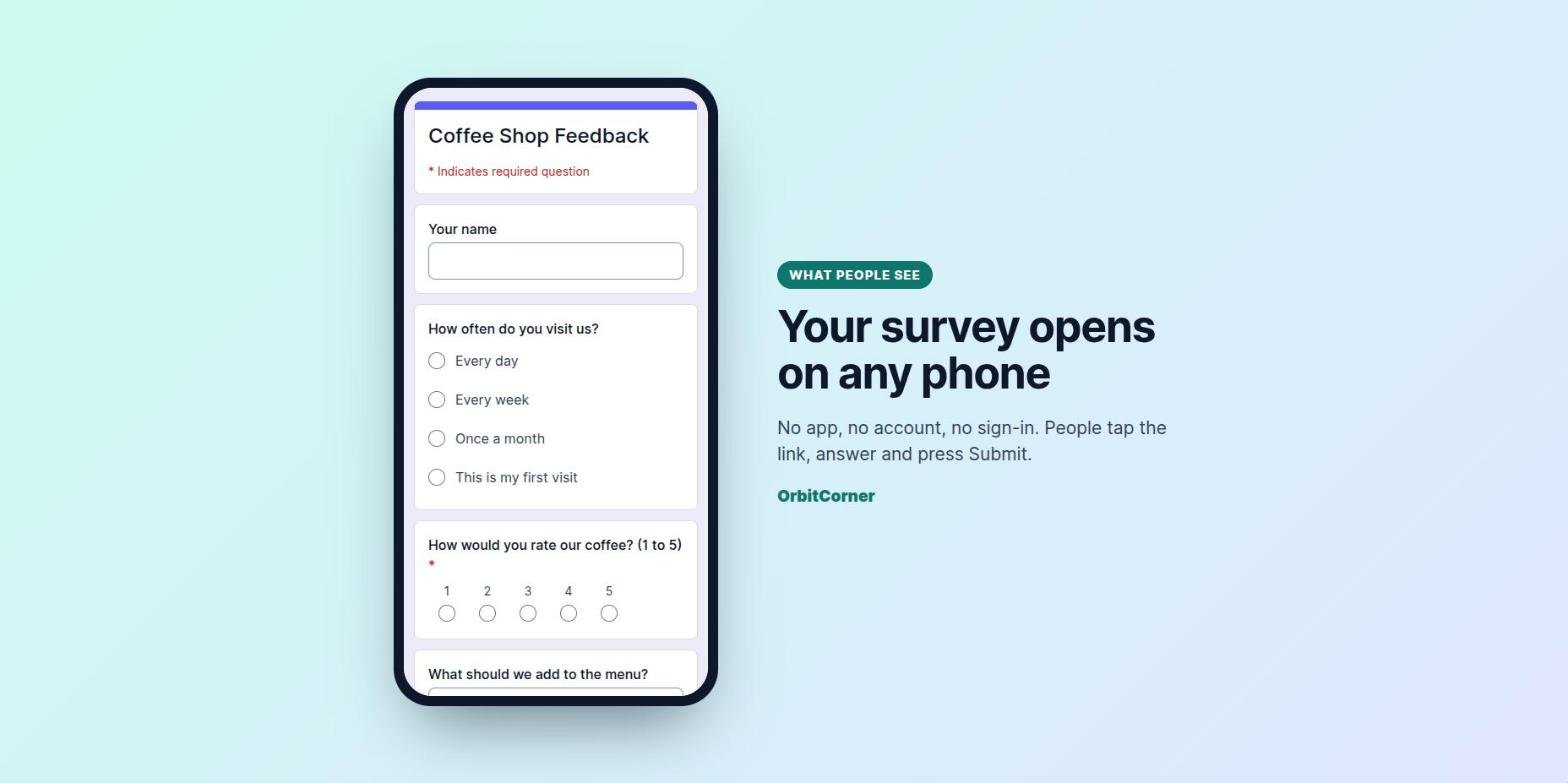
Search engines don’t list your survey, so only people with the link find it.
How to see and download the responses
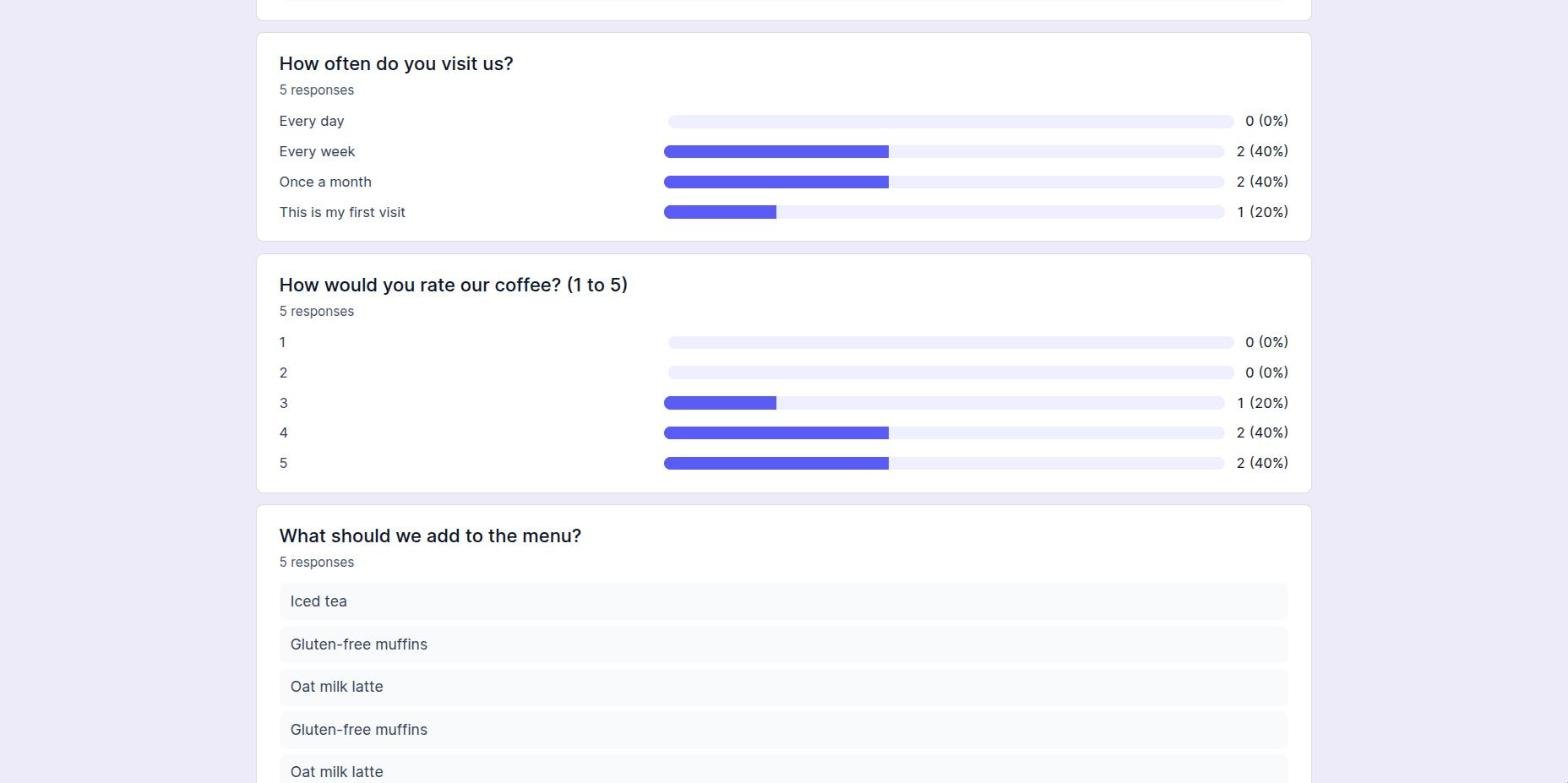
Open your private link at any time. The Summary view turns every choice question into a bar chart, so you can read the results at a glance. Switch to One by one to read each person’s full answers.
Press Download (CSV) to get every answer as a spreadsheet. Excel, Google Sheets and Numbers all open CSV files. Each row is one response, with a timestamp and one column per question.
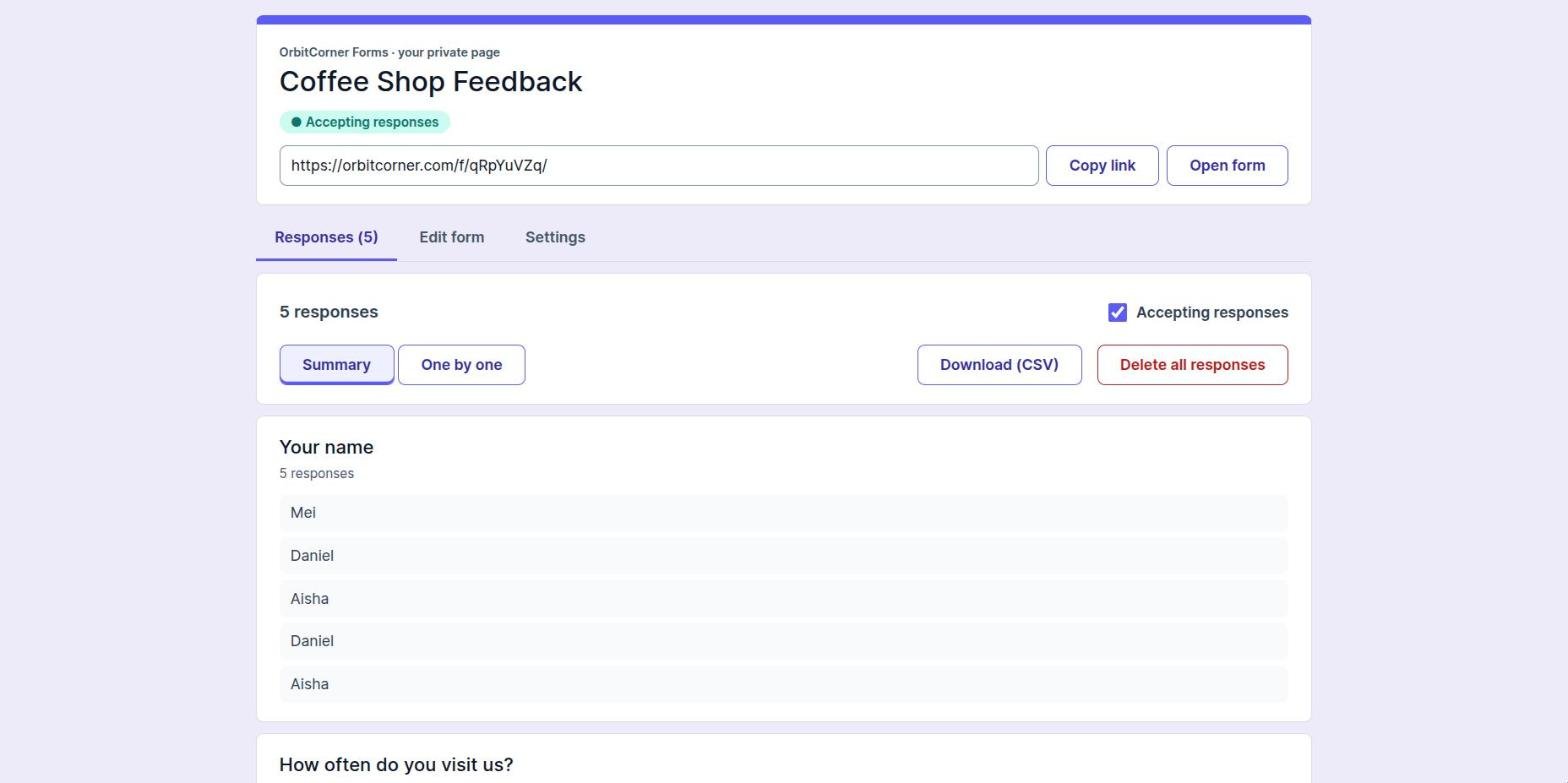
When you have enough answers, turn off Accepting responses. The link stays the same, but people can no longer submit.
Free Form Builder or Google Forms?
Both are free. Pick the one that fits the job:
| You want to… | Use |
|---|---|
| Get a survey link in two minutes without signing in | Free Form Builder |
| Keep the survey and the answers in your Google Drive | Google Forms |
| Collect file uploads | Google Forms (people must sign in to Google to upload) |
| Turn a long Word or PDF question list into a Google Form fast | Google Form Generator |
If you choose Google Forms, our guide on how to make a Google Form walks you through it.
Privacy and limits
- OrbitCorner stores your survey and its answers on orbitcorner.com and never sells or shares them.
- OrbitCorner deletes a survey and its answers after 6 months without activity. Download your CSV before then.
- OrbitCorner removes forms that ask for passwords, card numbers or bank logins, or that break the law.
Create your free survey link
No sign-up and no app. Type your questions and share the link in minutes.
Frequently asked questions
Can I create a survey link without an account?
Yes. The Free Form Builder needs no account, email or password. You get a public link to share and a private link for the results as soon as you press Create my form.
Is the survey link really free?
Yes. Creating the survey, sharing the link, reading the charts and downloading the CSV file cost nothing.
How do I make a survey link for WhatsApp?
Create the survey, copy the share link and paste it into a WhatsApp chat or group. The link opens in the phone’s browser, so people answer without installing anything.
Can people answer anonymously?
Yes, as long as you don’t ask for names and leave Collect email addresses turned off.
How do I stop people from answering?
Open your private link and turn off Accepting responses. Turn it back on whenever you like.
Can I make a quiz instead of a survey?
Yes. Add the correct answers to your questions and the builder switches on quiz mode by itself. You can also turn it on under Form settings.
Where do I find my responses later?
Open the private link you got when you created the survey. Save it somewhere safe, such as a bookmark or an email to yourself.